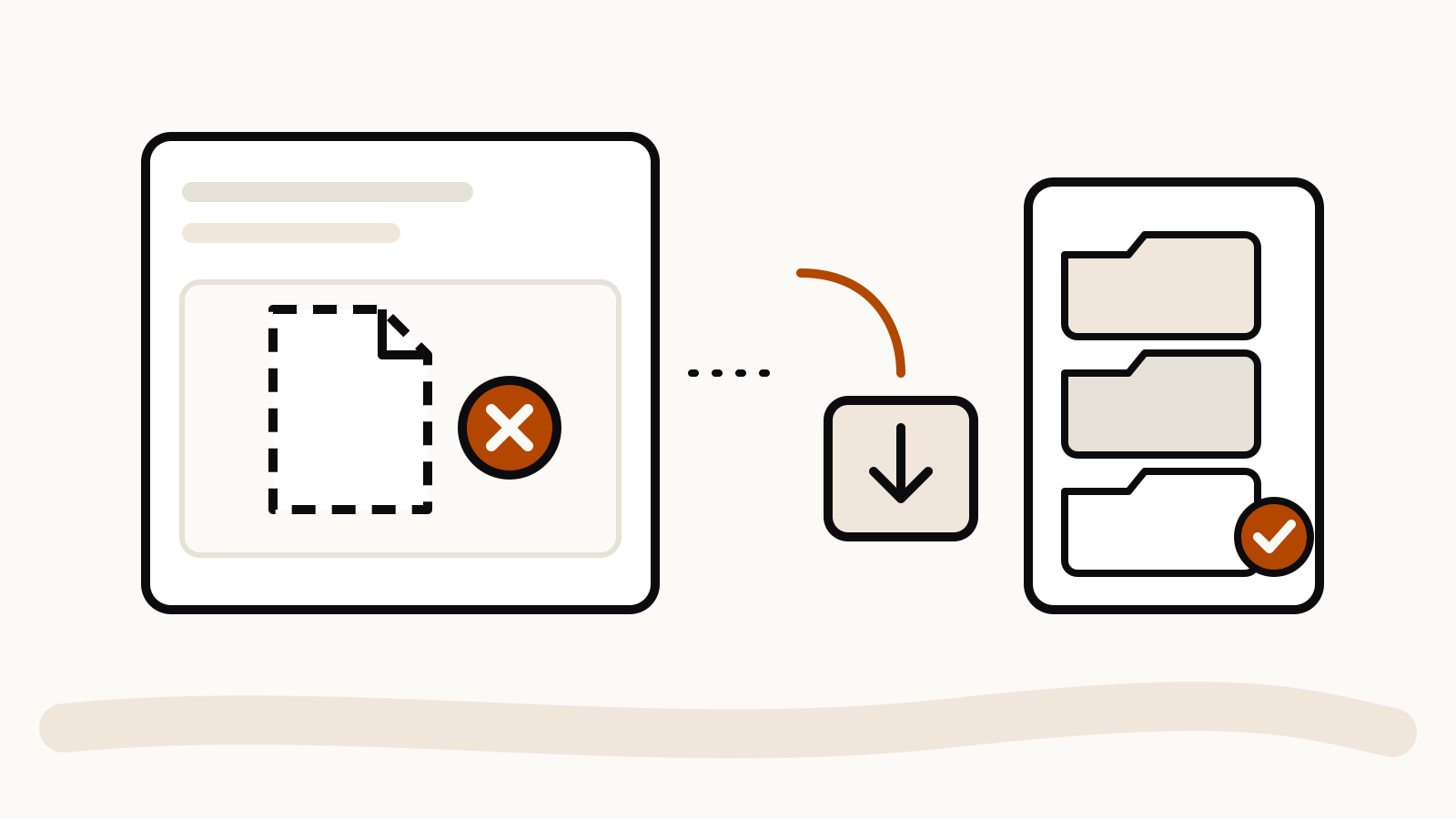
ChatGPT shows “File not found” or “Download failed” when you click a file it made earlier, most often because that file has expired. OpenAI says files generated by ChatGPT expire quickly. The fix is to ask ChatGPT to create the file again in the same chat and download it right away, then keep a copy in your Library.
The error appears on download links ChatGPT writes into its answer, such as a CSV, a spreadsheet, a PDF, a ZIP or a chart it built with code. The link stays in the chat history, but the file behind it does not stay forever. Here is what to try, in order.
On this page
Why ChatGPT says “File not found”
OpenAI’s troubleshooting page for ChatGPT error messages lists four causes for download errors:
| Cause | What it looks like | Fix |
|---|---|---|
| The file expired | An old link in a chat from hours or days ago | Ask ChatGPT to make the file again |
| Code Interpreter is off in a GPT | Files never appear in a custom GPT | Turn on Code Interpreter & Data Analysis in the GPT’s settings |
| VPN or proxy | Downloads fail while other pages load | Turn off the VPN or proxy and try again |
| The file is too large | Large exports fail every time | Stay under 512 MB, or split the output |
The first cause covers most cases. A file made in a chat is not stored with the chat the way your messages are, so an old link can fail even though the chat itself loads fine.
How to fix it
- Ask for the file again. In the same chat, send:
Please create the file again and give me a new download link.ChatGPT usually still has the steps it used, so it can rebuild the file. Download it as soon as the link appears. - If the data is gone, paste it back. When ChatGPT built the file from an upload, the upload may have expired too. Upload the source file again, then ask for the output.
- Turn off a VPN or proxy. OpenAI names these as a cause of failed downloads. Try again on a direct connection.
- Check the GPT’s settings. In a custom GPT you built, open Configure and make sure Code Interpreter & Data Analysis is on. Without it, the GPT cannot create files at all. If it is someone else’s GPT, ask its builder.
- Make the file smaller. OpenAI’s limit is 512 MB per file. Ask for fewer rows, a compressed format, or several smaller files.
- Try the web app. If the download fails in the desktop or mobile app, open the same chat on chatgpt.com and click the link there.
If you are not sure which cause applies, step 1 fixes the expired-file case in under a minute, so start there.
Keep files so the link never breaks
OpenAI’s page on the ChatGPT Library describes a place that keeps your uploaded and created files across chats. It is available on the web for Free, Go, Plus, Pro, Business, Enterprise, Edu and Healthcare accounts.
- Open Library in the sidebar and filter by Uploaded or Generated.
- Select one or more files and click Download to save a copy.
- Generated images are kept in the separate Images tab, not in Library.
- Files from Temporary Chat are not saved anywhere.
- Files from a locked chat are hidden from Library.
If your account shows Space instead, OpenAI’s file upload page says your saved files are there.
Library storage and file size limits
Library storage depends on the plan:
| Plan | Library storage |
|---|---|
| Free | 500 MB |
| Go | 4 GB |
| Plus | 20 GB |
| Business | 20 GB |
| Pro | 100 GB |
Per-file limits are the same on every plan: 512 MB for any file, 2 million tokens for a text file, about 50 MB for a CSV file, and 20 MB for an image. A file over these limits fails before ChatGPT can work with it.
Product documentation checked November 13, 2026.