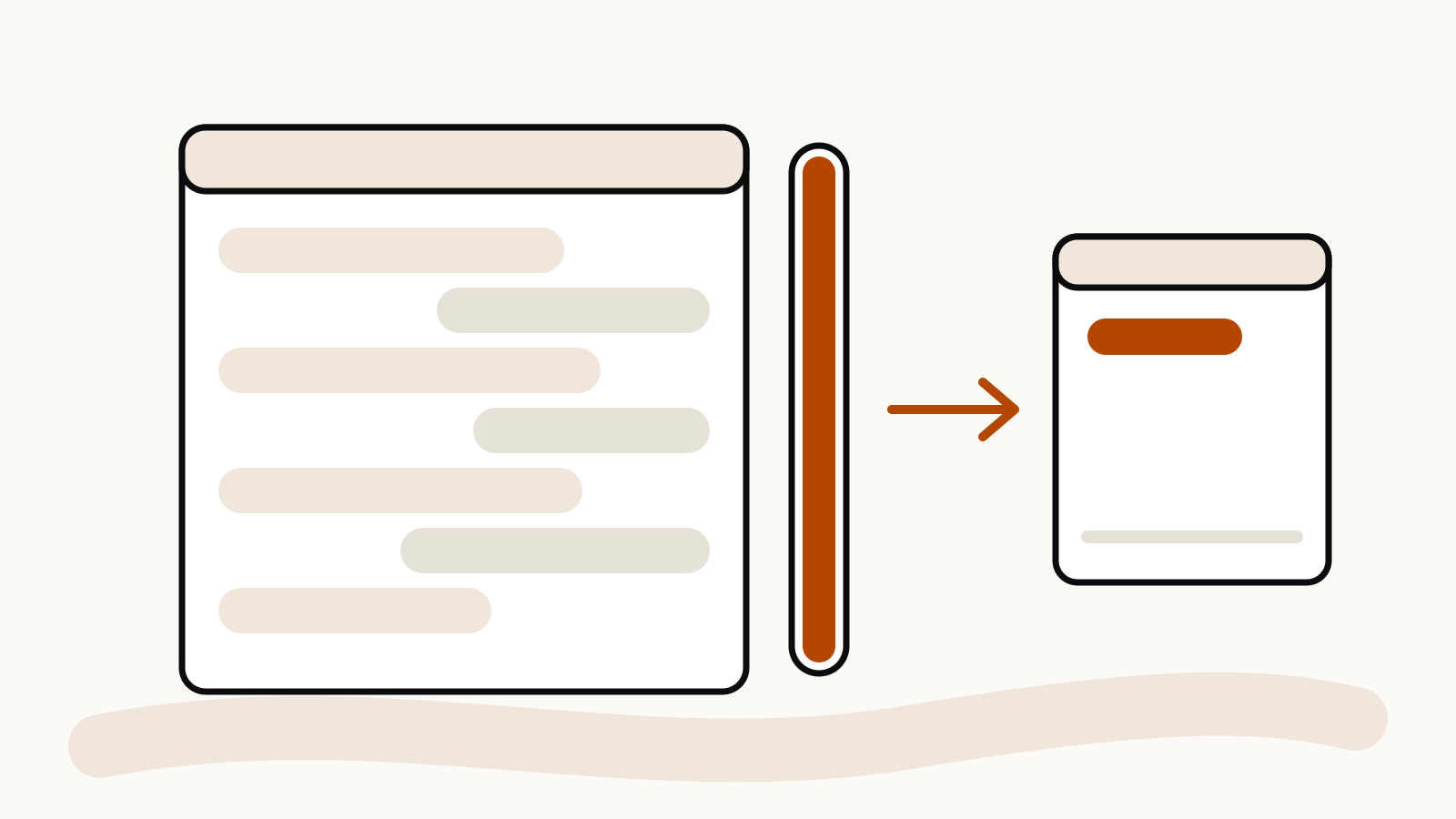
“Context window full” and “Chat memory full” mean the current ChatGPT conversation has run out of room on the Free plan. Your messages and ChatGPT’s replies both count, so a few long exchanges can fill a chat. The fix is to continue in a new chat, which is free, or to upgrade if the notice offers it. Clearing saved memories does not help. This is how OpenAI explains it in its help article Why does ChatGPT say “Context window full” or “Chat memory full”?, checked on November 7, 2026.
On this page
What the notice means
Both wordings describe the same thing: the conversation is full. Per OpenAI’s article:
- It applies to the Free plan. OpenAI’s article describes the two notices for Free accounts.
- Everything in the chat takes space. Your prompts, pasted text and ChatGPT’s answers all count toward it. Long documents pasted in early fill a chat faster than short back-and-forth messages.
- It can appear when you reopen a chat. You may see it as soon as you open an older conversation, even if no warning showed up the last time you used it.
- It is not your saved memory. “Chat memory” here means the room inside this one conversation. Deleting saved memories in Settings will not free space in the chat.
How to keep chatting
OpenAI lists three ways forward:
- Start a new chat. This is free and works right away. Choose New chat in the sidebar.
- Continue from a summary. If the notice offers to start a new chat with a summary, use it to pick up where you left off. The summary can leave out details, so check that the facts you need made it across.
- Upgrade, if offered. When the notice includes an upgrade option, choosing it lets you keep going in the original chat.
If the old conversation is still in your history, open it and copy what you still need, such as the paragraph you were editing or the list you built, into the new chat.
A short hand-over message for the new chat
A summary is quicker when you tell ChatGPT exactly what to carry over. Paste the key material from the old chat, then add:
We are continuing a task from another chat. The goal is [goal]. Decisions already made: [list]. The current draft is below. Keep these decisions and continue from the last step: [next step].
Short, specific hand-overs leave more room in the new chat than pasting the whole old conversation.
If a new chat also says it’s full
OpenAI gives a separate check for this case:
- If you continued with a summary, choose New chat in the sidebar to open a separate conversation.
- Send a short test message, such as “What’s the capital of France?”
- If the notice still appears after one or a few short messages, check OpenAI Status for an incident affecting ChatGPT conversations, and try again once it is resolved.
- If there is no incident, sign in to the same account in a private browser window and send the same short message in a new chat.
- If it keeps happening, contact OpenAI Support, even if it only happens in the app.
For the support request, OpenAI asks for your app or browser version, the time and time zone, roughly how many messages you sent, and what happened when you tried the browser. A link to a test chat helps if you are comfortable sharing one; the original conversation can stay private.
How to fill chats more slowly
- Split big jobs across chats. One chat per document or task keeps each conversation shorter. Our guide to branching a ChatGPT conversation covers how to fork a chat when it takes a new direction.
- Paste only what the task needs. Trim long documents to the sections you are asking about. The token counter shows how long a text is before you paste it.
- Ask for shorter answers when you don’t need long ones. Replies count toward the space too.