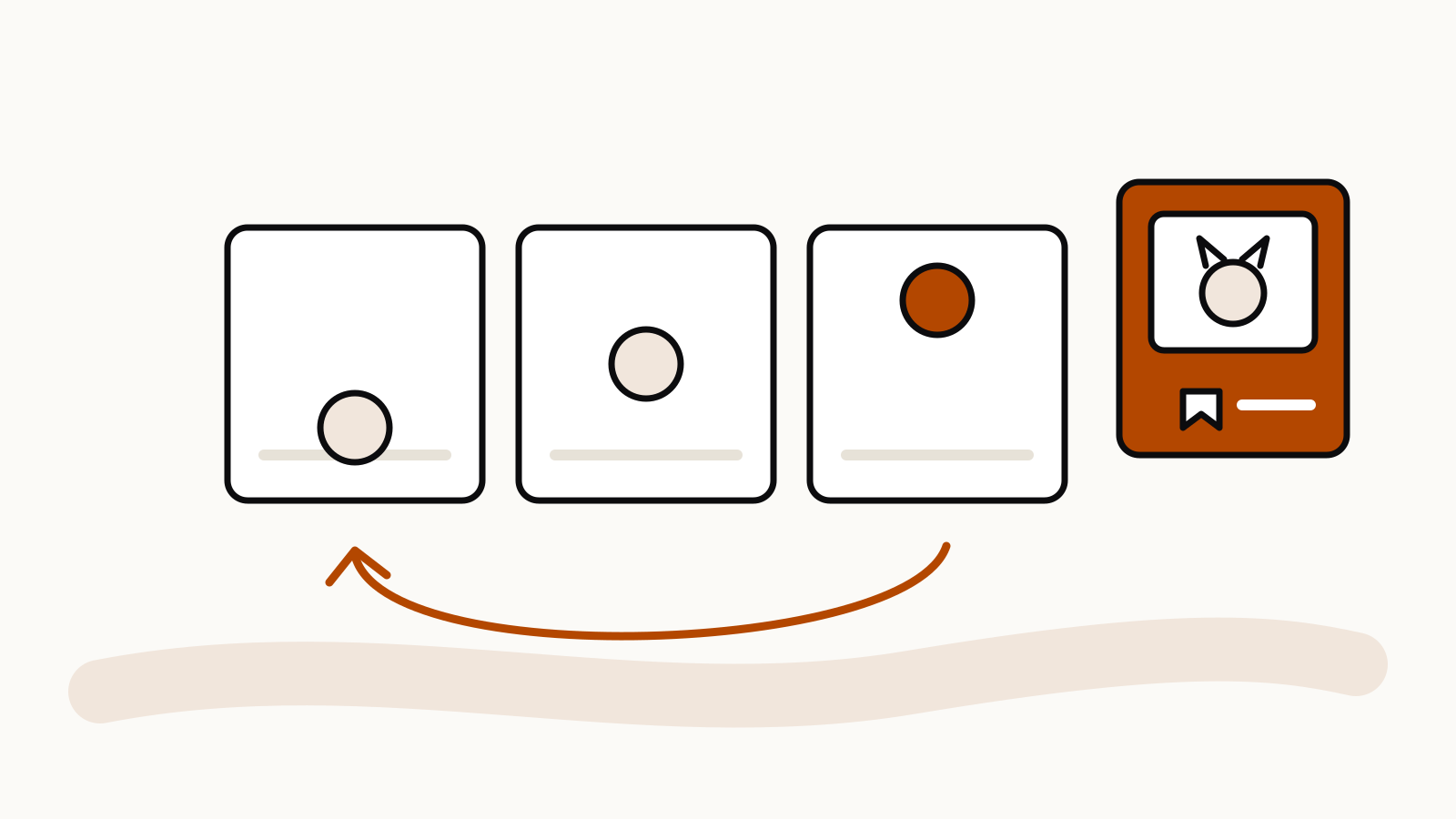
ChatGPT can now turn a prompt, a still image or a sketch into a looping GIF, and it can save a photo under a name so you can call it back in later chats by typing @ and that name. OpenAI added both on November 4, 2026, with ChatGPT Images 2.6, according to the ChatGPT release notes. GIF creation is still rolling out, so some accounts will not see it yet.
On this page
What changed on November 4
OpenAI’s Images 2.6 announcement lists three changes for people who make images in ChatGPT:
- Looping GIFs. Ask for an animation, or upload a picture and ask ChatGPT to make it move. You can change the playback speed, save the GIF and share it.
- Saved reference photos. Save a photo once, give it a name and reuse it in a new chat without uploading it again.
- Faster images. OpenAI says Images 2.6 generates images 50% faster than before and keeps details steadier from one edit to the next, such as a character’s outfit when you change the background.
The announcement says Images 2.6 is available in ChatGPT on every subscription tier, on web, desktop and mobile. The release notes add that GIF creation specifically “is rolling out”, so the GIF option can reach your account later than the faster model.
How to make a GIF in ChatGPT
OpenAI’s help page Images in ChatGPT gives the steps:
- In a chat, ask for a looping GIF and describe what should move. OpenAI’s own example is “Make a looping GIF of a paper boat bobbing on the water.”
- To animate a picture you already have, upload the still image and ask ChatGPT to animate it.
- To change the result, describe the edit in the same conversation.
- Open the GIF to adjust its playback speed, save it to your device or share it.
One limit is stated plainly: ChatGPT can’t edit an animated GIF that you upload. It edits GIFs it made itself.
Prompts to start from
Start short and add detail only where the first result misses. These three follow the pattern in OpenAI’s examples: say what moves, keep everything else still, and say how the loop ends.
Make a looping GIF of a paper boat bobbing on the water. Keep the camera fixed and the background still.
Animate this sketch as a looping GIF: the character waves twice, then returns to its starting pose. Keep the line style and colors exactly as drawn.
Make a looping GIF of a small potted cactus that sways left, then right, then settles back to the first frame. Flat illustration, plain cream background, no text.
For tighter control over timing, the prompts in OpenAI’s launch post spell out the frames: “Exactly 6 sequential frames arranged in a precise 3-column by 2-row grid”, a “fixed front three-quarter camera”, and a final frame that “transitions smoothly toward the first”. Borrow those lines when a loop jumps at the restart.
How saved reference photos work
From the same help page:
- Upload a photo and ask ChatGPT to save it as a reference. ChatGPT may also offer to save a photo when you describe it, for example as a picture of your dog.
- Choose a name for the reference and save it.
- In a later chat, type @ followed by the saved name. OpenAI’s example: “Make a watercolor portrait of @Pepper.”
A reference is a starting point for a new image, not a copy of the photo, so check that the features you care about came through. Use photos you own or have permission to use, and keep pictures of other people out of it unless they have agreed.
A reference prompt that says what to keep
Make a watercolor portrait of @Pepper sitting in a garden. Keep the coat colors, the ear shape and the white patch on the chest. Change only the setting and the painting style.
Naming the details to keep gives you a checklist for the result. If one drifts, ask for that single fix in the next message instead of rewriting the whole prompt.
What this means for your image prompts
The two features work together. Save a pet, a mascot you drew or a product photo as a reference, place it in a still scene, then ask for a short loop of that scene. For still-image prompting in general, our ChatGPT image prompts guide covers OpenAI’s own tips, and the ChatGPT image prompt examples give seven templates you can edit.