Nano Banana 2.1 prompts work best when they use what the update added: up to 14 reference images split into objects and characters, four new extreme aspect ratios, a thinking level you can raise, and grounding in Google Image Search. Below are eight copy-ready templates built on those features, plus the limits that decide when a prompt will fail.
Nano Banana 2.1 is Google’s name for the model gemini-nano-banana-2.1. Google’s image generation docs call it “an update to Nano Banana 2” and recommend it for all new projects, with better visual quality, text rendering, multi-turn consistency and search grounding at 1K, 2K and 4K. The model card lists where it runs: the Gemini app, Google AI Studio, the Gemini API, AI Mode in Search, Google Ads, Flow and Stitch.
On this page
What changed from Nano Banana 2
| Feature | Nano Banana 2 (Gemini 3.1 Flash Image) | Nano Banana 2.1 |
|---|---|---|
| Reference images | Up to 14: 10 objects, 4 characters | Up to 14: 10 objects, 4 characters |
| Thinking levels | minimal (default), high | minimal, medium (default), high |
| Output sizes | 512px, 1K, 2K, 4K | 1K, 2K, 4K (no 512px) |
| Extreme ratios | 1:4, 4:1, 1:8, 8:1 | 1:4, 4:1, 1:8, 8:1 |
| Search grounding | Web Search and Image Search | Web Search and Image Search, with better quality |
The prompt-level differences are small but real. The default thinking level is now medium, so a plain prompt already gets more reasoning than it did on Nano Banana 2. And if you build small thumbnails, 2.1 starts at 1K; Google points to Gemini 3.1 Flash Image for 512px output.
How to write a Nano Banana 2.1 prompt
Google’s own best practices for the model come down to six habits. These are the ones that matter most in the templates below:
- Be hyper-specific. Describe materials, colors and shapes, not a category (“ornate plate armor etched with silver leaf”, not “fantasy armor”).
- State the purpose. “A logo for a high-end, minimalist skincare brand” gets a better result than “a logo”.
- Break complex scenes into steps. First the background, then the foreground, then the focal object.
- Describe what you want, not what you don’t. Google calls this a semantic negative prompt: “an empty, deserted street” instead of “no cars”.
- Use camera language. Wide-angle, macro, low-angle and 45-degree shots all steer the composition.
- End with the frame. Google’s examples close with the shape of the image (“Square image.”, “Aspect ratio 16:9.”). In AI Studio or the API you can also set it in the request.
8 Nano Banana 2.1 prompt templates
Each template marks the parts to replace in square brackets.
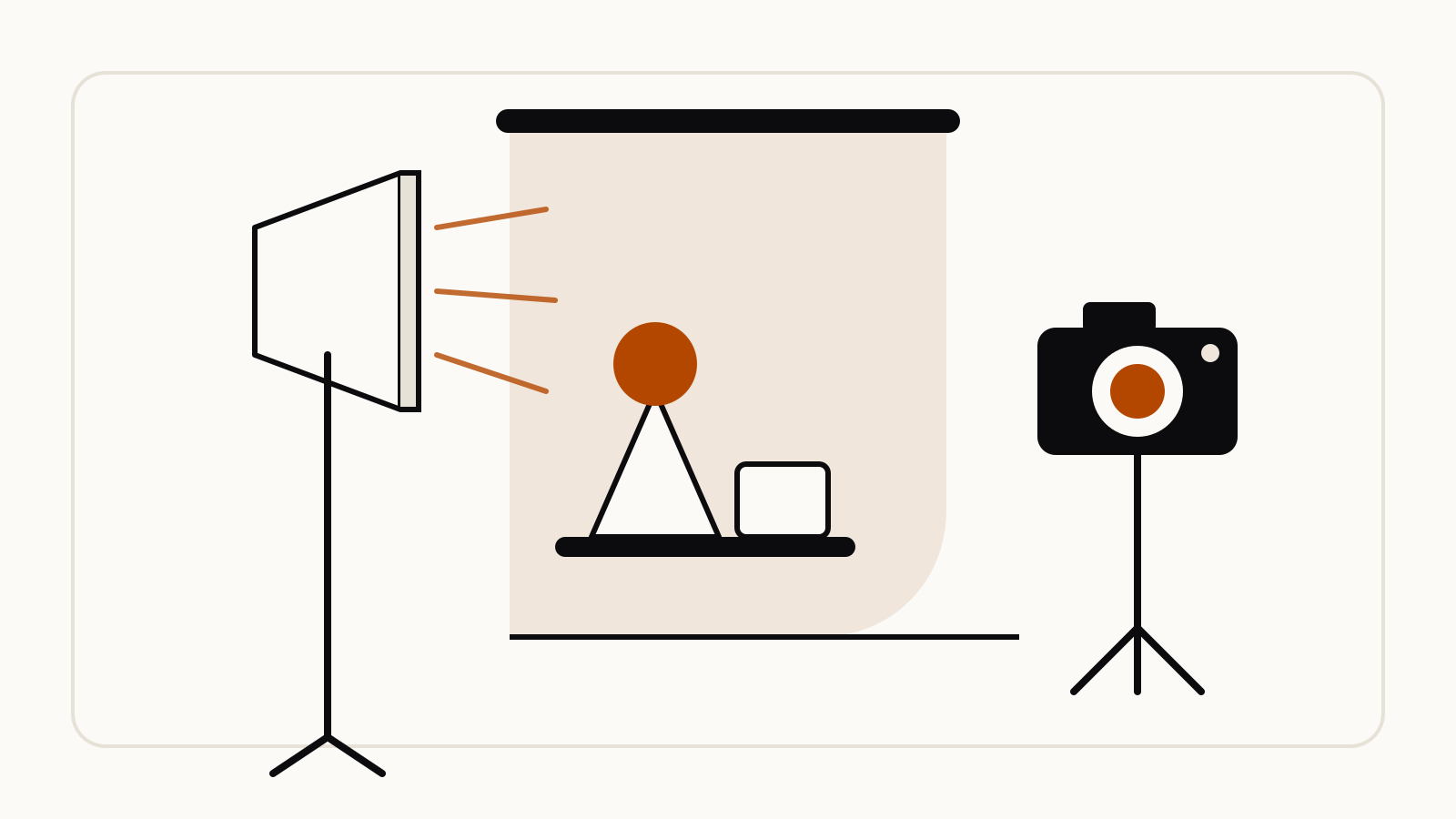
1. Product shot from several object references
Use this when you upload photos of a product and its props. Nano Banana 2.1 keeps up to 10 objects with high fidelity in one image.
Using the uploaded images as exact references for each object, create a studio product photograph of [product] on [surface]. Place [object 2] to the left and [object 3] behind it, slightly out of focus. Keep the logos, colors and proportions of every object exactly as in the references. Three-point softbox lighting, soft diffused highlights, no harsh shadows. Camera at a slightly elevated 45-degree angle. Aspect ratio 4:5.
2. One character across several scenes
Upload one to four character images (your own drawings or photos you have the right to use). The model keeps up to 4 characters consistent.
Using the uploaded character sheet as the reference, show the same character [name or description] in a new scene: [setting, time of day]. Keep the face shape, hair, clothing and color palette identical to the reference. The character is [action], seen from a [camera angle]. Style: [illustration style]. Aspect ratio 3:2.
Then keep the chat going instead of starting over: “Keep everything the same, but move the scene to night and add rain.” Multi-turn consistency is one of the improvements Google lists for 2.1.
3. Panorama banner (4:1 or 8:1)
The new wide ratios suit website headers, event banners and long timelines.
A wide panoramic illustration of [scene], read from left to right: [left section], then [middle section], then [right section]. Keep a continuous horizon line and the same light direction across the whole width. Leave calm, empty sky across the top quarter. Style: [style]. Aspect ratio 8:1.
Describe the scene in sections from left to right, as above. A single subject stretched across 8:1 tends to leave empty ends.
4. Tall strip (1:4 or 1:8)
For vertical web banners, step-by-step strips and long infographics.
A tall vertical infographic about [topic], divided into [number] stacked panels from top to bottom: [panel 1], [panel 2], [panel 3], [panel 4]. Each panel has one simple icon and a short label. Flat vector style, [two or three colors], generous spacing between panels. Aspect ratio 1:4.
5. Text that has to be legible
Google’s limitations note says the model works best when you first generate the text and then ask for an image with it. So split the job in two turns.
Turn 1:
Write the exact text for a [poster / menu / label] about [subject]: one headline of no more than 6 words, one subheading of no more than 12 words, and [number] short items. Plain text only.
Turn 2:
Now design a [poster / menu / label] that uses the text above exactly as written, with no extra words. [Font style, e.g. bold sans-serif headline], [layout], [color scheme]. Aspect ratio [ratio].
6. A grounded image of something current
With Grounding with Google Search on, the model can check facts before drawing, such as a forecast or a recent event. In the API this is the google_search tool.
Search for the current [5-day weather forecast / schedule / result] for [place or event], then create a clean, modern [chart / card / infographic] that shows it. Label each [day / item] with the real values you found. Flat design, [color scheme]. Aspect ratio 16:9.
7. Style from a web image search
Image Search grounding is new on this generation. It lets the model look at web images as visual context, for example for a place or a landmark.
Search for images of [landmark or place] and use them as visual reference for its shape and details. Create a [style, e.g. watercolor] illustration of it at [time of day], seen from [viewpoint]. Aspect ratio 3:2.
Grounding on 2.1 does not use real-world images of people from web search, so this works for places, objects and buildings, not for public figures.
8. Hard composition with high thinking
For dense scenes with many rules, set the thinking level to high in AI Studio or the API (thinking_level: "high"). The model then reasons longer before drawing. Interim “thought images” are not charged, according to Google.
First, create the background: [setting]. Then, in the middle ground, add [element 2]. In the foreground, place [element 3] on the [left / right] third of the frame. Rules: [rule 1], [rule 2], [rule 3]. Lighting: [light source and direction]. Camera: [lens or shot type]. Aspect ratio [ratio].
Use minimal for quick drafts and keep high for final passes, since more thinking means more waiting.
Limits that break prompts
- People in grounded images. Search grounding on 2.1 does not use real-world photos of people from the web.
- Counting outputs. The model “won’t always follow the exact number of image outputs” you ask for. Ask for one image per turn if the count matters.
- Reference budget. 10 objects and 4 characters is the documented ceiling for high fidelity and resemblance. Past that, details drift.
- Languages. Google lists 15 languages for best performance, English among them.
- Watermark. Every generated image carries a SynthID watermark.
Product documentation checked November 13, 2026.