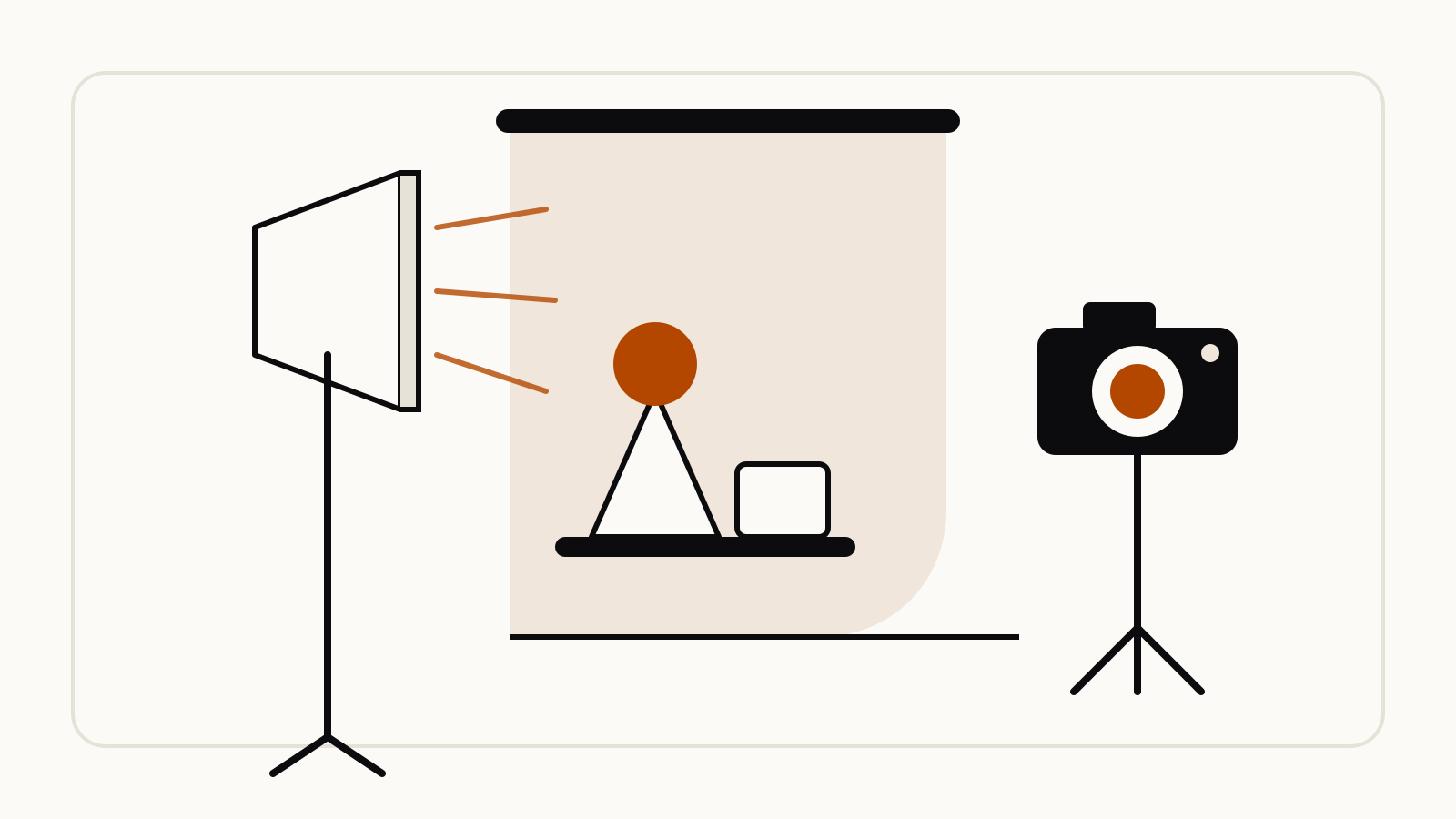
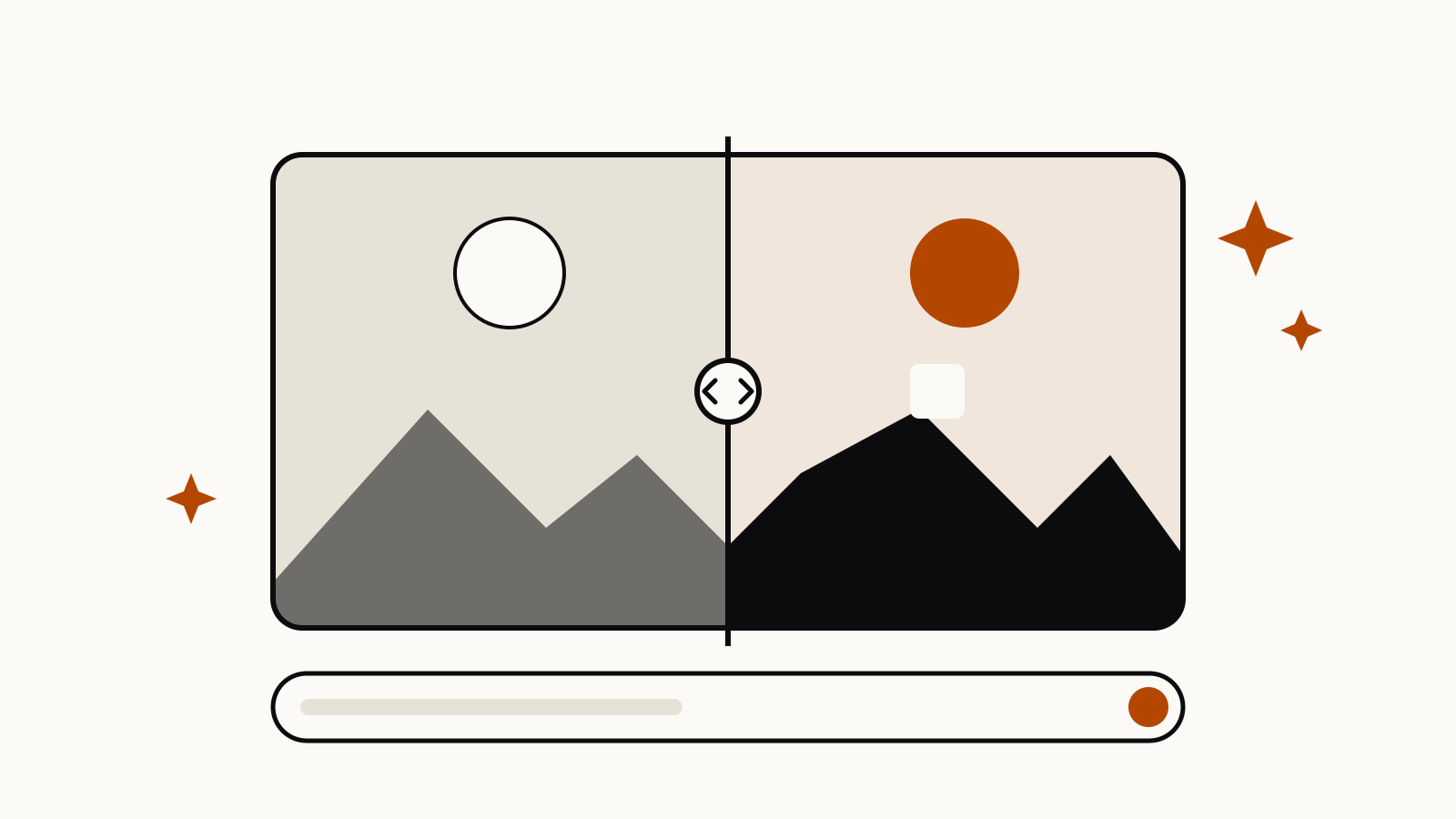
A good Gemini prompt for photo editing does three things: it names the one change you want, says what must stay exactly as it is, and asks Gemini to match the photo’s light and perspective. Upload the photo in the Gemini app, write the edit as a direct instruction, such as Google’s own example “change the man’s tie to green”, then refine the result in follow-up messages.
On this page
How Gemini edits a photo you upload
Gemini edits images with its image model, Nano Banana. Google’s developer guide describes editing as: “Provide an image and use text prompts to add, remove, or modify elements, change the style, or adjust colors.” It adds that the model “will analyze the original image’s style, lighting, and perspective to make the edit look natural.”
In the Gemini app, editing images requires you to be 18 or over (Gemini Apps Help). Our guide on how to use Nano Banana covers where to find the image tools and which models each plan gets.
Google’s Nano Banana Pro tips give the one rule for edits: “For modifying an existing image, be direct and specific (e.g., change the man’s tie to green, remove the car in the background).”
The edit formula: change, keep, match
Google’s templates for adding, removing and changing one area share the same three parts. Put together, they make one reusable prompt:
Using the provided photo, [add / remove / change] [one specific element]. Keep [faces, pose, other objects, framing] exactly the same. Match the lighting, shadows and perspective of the original photo.
- Change one thing per message. Google lists “complex edits and image blending” among the model’s current limitations, so two small edits usually beat one big one.
- Keep is what stops Gemini from redrawing the rest. Name the parts you care about: a face, a logo, the crop.
- Match makes an added object or a new background look photographed rather than pasted in.
Google’s official photo editing templates
These come from Google’s developer guide, with Google’s own example under each template.
Add or remove an element
Using the provided image of [subject], please [add/remove/modify] [element] to/from the scene. Ensure the change is [description of how the change should integrate].
Using the provided image of my cat, please add a small, knitted wizard hat on its head. Make it look like it's sitting comfortably and matches the soft lighting of the photo.
Library listing: add a knitted wizard hat to a cat photo.
Change only one area (inpainting)
Using the provided image, change only the [specific element] to [new element/description]. Keep everything else in the image exactly the same, preserving the original style, lighting, and composition.
Using the provided image of a living room, change only the blue sofa to be a vintage, brown leather chesterfield sofa. Keep the rest of the room, including the pillows on the sofa and the lighting, unchanged.
Library listing: change only the sofa in a living room photo.
Restyle the whole photo
Transform the provided photograph of [subject] into the artistic style of [artist/art style]. Preserve the original composition but render it with [description of stylistic elements].
Library listing: Starry Night style transfer of a city street.
Combine two photos
Create a new image by combining the elements from the provided images. Take the [element from image 1] and place it with/on the [element from image 2]. The final image should be a [description of the final scene].
When you upload several images, Google’s Nano Banana Pro tips say to “clearly define the role of each”, for example “Use Image A for the character’s pose, Image B for the art style, and Image C for the background environment.”
Short edit prompts from Google’s own examples
Not every edit needs a template. Google’s Nano Banana Pro tips show one-line edits:
Turn this scene into nighttimeFocus on the flowerstranslate all the English text on the three yellow and blue cans into Korean, while keeping everything else the same
The Gemini app’s own account on X posted an old-photo edit with the shortest prompt of all: restore and colorize this photo. (@GeminiApp on X).
Community prompts for specific edits
These prompts were shared on X for niche edits that the official templates do not cover. We quote the prompt text and what the authors show; open each post to see their before-and-after images. All six are collected with their links in the Awesome Nano Banana images collection on GitHub.
Rescue a flat, boring photo. Shared by @op7418 on X. The prompt gives Gemini permission to crop, which most edit prompts forbid:
This photo is very boring and plain. Enhance it! Increase the contrast, boost the colors, and improve the lighting to make it richer,You can crop and delete details that affect the composition.
Re-shoot with different camera settings. Shared by @hckinz on X. Written like a camera readout; swap the values in brackets for the exposure and lens you want:
RAW-ISO [100] - [F2.8-1/200 24mm] settings
Copy the lighting from another photo. Shared by @ZHO_ZHO_ZHO on X. Upload the photo to change first and the lighting reference second:
Change the character from Image 1 to the lighting from Image 2, with dark areas as shadows
Fill the empty edges after you widen a canvas. Shared by @bwabbage on X. Useful when you extended a photo in another editor and the new area shows as a transparent checkerboard:
Repair the checkerboard (transparent) parts of the image and restore a complete, coherent photo.
Redraw a blurry chart from a photo. Shared by @omarsar0 on X for Nano Banana Pro. Google warns to “always verify the factual accuracy of data-driven visuals”, so check every number against the original:
Please reproduce this chart in high quality and fidelity and offer annotated labels to better understand it.
Undo a bite. Posted by Google Japan on X; replace the brackets with the food:
Restore this half-eaten [XX] back to its original uneaten state.
Fixes for edits that go wrong
Each fix below comes from Google’s developer guide unless noted.
| Problem | What to add or do |
|---|---|
| Gemini changed things you did not ask for | “Keep everything else in the image exactly the same, preserving the original style, lighting, and composition.” |
| The photo came back in a different shape | “Do not change the input aspect ratio.” With several images, Gemini adopts the aspect ratio of the last one you upload. |
| A face changes after many edits | Start a new conversation and describe the person in detail. |
| A removed object leaves an odd gap | Describe what should be there instead. Google calls this a “semantic negative prompt”: write “an empty, deserted street with no signs of traffic” rather than “no cars”. |
| The edit is close but not right | Follow up in the same chat, for example “That’s great, but can you make the lighting a bit warmer?” |
| Relighting or blending looks unnatural | Google lists lighting changes and blending among current limitations (Nano Banana Pro tips); split the edit into smaller steps. |
Photos of people
Gemini can edit photos of you; Google’s help page lists trying “different hairstyles” and picturing yourself “in different scenes” as uses, and asks you not to “violate others’ copyright or privacy rights” (Gemini Apps Help). Only upload photos of other people with their consent. Google’s API documentation says all generated images include a SynthID watermark, which is invisible.