Gemini usage limits are compute-based, not a single fixed prompt allowance. Google says prompt complexity, the model and features you use, and the length of the chat all affect consumption. The short window refreshes every five hours, so the Gemini limit can reset several times a day until the account reaches its weekly limit.
Docs checked: 27 October 2026. This guide covers Gemini Apps for personal Google Accounts. Work and school accounts use separate access rules. Limits, plan multipliers and feature availability can change.
On this page
What “compute-based” means
Two people can send the same number of prompts and reach a limit at different times. A short request for an email subject line uses much less compute than a long conversation, a large-file analysis, Deep Research or video generation.
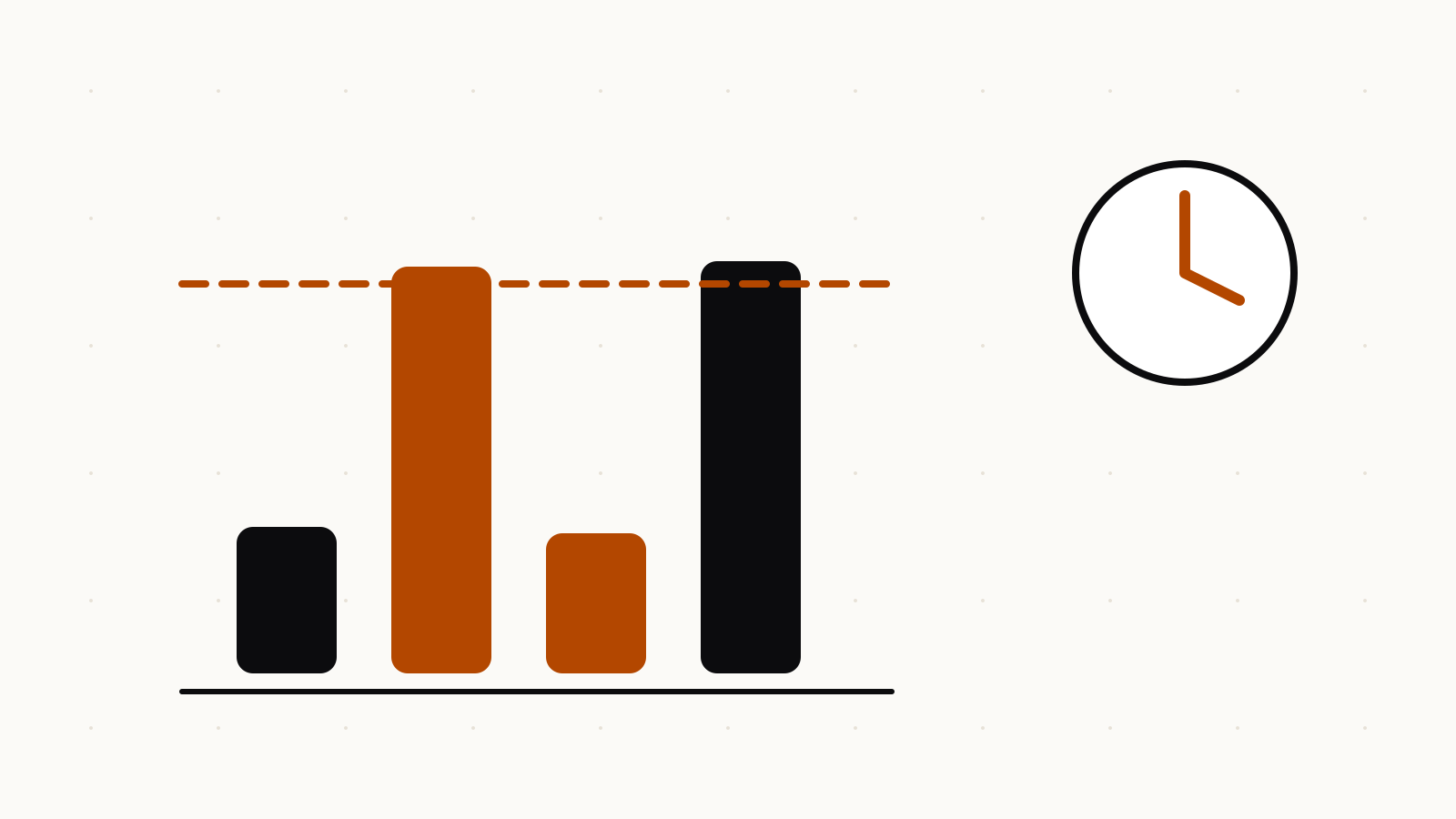
Google’s current help page groups relative usage roughly like this:
- short text conversations use very little;
- long chats and large-file analysis use more;
- Deep Research and media generation use substantially more;
- video generation generally requires the most usage.
That is why counting messages is not a reliable way to predict the remaining allowance. The content and feature matter.
The five-hour refresh and weekly limit
Google says a Gemini Apps limit refreshes every five hours until the weekly limit is reached. Think of these as two gates:
- the shorter usage window can reopen after the refresh time shown in Gemini;
- the weekly ceiling can still prevent more use even after a five-hour window passes.
When you reach a limit, Gemini Apps displays a notification with the refresh time. Use that in-product time rather than calculating your own deadline from the last prompt. Capacity and product rules can change, and the short window is not the only limit.
To view the current state, Google directs users to Gemini → Settings → Usage Limits. Availability of that view can depend on the account and interface.
Why a long chat reaches the limit faster
Gemini has to reread conversation history to maintain context. Google classifies ongoing conversations as a higher relative usage cost than a short standalone request. A thread with many revisions can therefore consume more than several independent questions.
If the task has clear stages, save the approved result and begin a new chat with only the material needed for the next stage. Do not do this to evade a limit. Do it to avoid sending irrelevant history back to the model.
For a structured way to pass only checked outputs between stages, use the prompt chaining examples.
Files and context windows are separate from usage limits
A context window is the amount of material Gemini can consider together. It is not the same thing as the five-hour or weekly allowance.
Google currently lists these Gemini Apps context windows:
- without a Google AI plan: 32,000 tokens;
- Google AI Plus: 128,000 tokens;
- Google AI Pro and AI Ultra: 1 million tokens.
A larger context window lets the app read more material at once. It does not mean every large upload is free of usage cost. Google’s help page classifies large-file analysis as medium relative usage and warns that exceeding the context window can make the response miss details or connections.
If an upload stops with a file-related limit, use the Gemini chats with files limit guide rather than assuming that every warning is the account-wide prompt limit.
Current plan multipliers
For personal accounts, Google’s help page describes plan access as multipliers rather than universal prompt counts:
- no AI plan: standard limits;
- AI Plus: two times higher than standard;
- AI Pro: four times higher than standard;
- AI Ultra: five times or twenty times higher than AI Pro, depending on the subscription.
These are relative limits. They are not a promise that a particular plan always receives a fixed number of prompts. Google also states that limits may change because of testing, availability, demand or capacity constraints. For a plan-by-plan overview, see does Gemini have a limit and the limits tracker.
Before upgrading, check the plan page in your own country and account. Feature and plan availability is regional.
What to do when Gemini says you reached a limit
Start with the notification. It should tell you when the affected limit refreshes.
Then identify the kind of work you were doing:
- for a long chat, preserve the needed result and wait for the stated refresh;
- for a large upload, reduce the source to the pages or sections needed for the task;
- for Deep Research or media generation, recognise that the feature uses more compute;
- for a model limit on a paid plan, Google says you may continue the conversation with Flash-Lite;
- if the account has reached the weekly limit, a five-hour wait alone may not restore access.
Do not repeatedly resend the same large request. That does not change the account’s refresh time and may make it harder to identify which input was accepted.
Reduce unnecessary usage without weakening the task
The goal is not to make every prompt short. It is to remove work the model does not need.
Start a focused thread
Put one project or decision in a chat. When the topic changes, start a new thread with the minimum approved context.
Trim files before uploading
Upload the relevant chapter, table or code section instead of an entire archive when the rest of the material cannot affect the answer.
Ask for an intermediate result
For a complex task, request a fact list or outline first. Review it before asking for the final document. This avoids spending a large second request on a bad assumption.
Stop revision loops
Replace “try again” with a small correction:
Keep the structure and facts. Change only the opening paragraph so it states the decision in the first sentence. Preserve all dates, names and links.
A precise revision reduces irrelevant work and makes the result easier to check.
Age and account conditions
Google says a user generally must be at least 13, or the applicable age in their country, to use Gemini Apps with a Google AI plan. In the European Economic Area, Switzerland and the United Kingdom, the minimum for a Google AI plan is 18. Some features can have their own age restrictions.
This page concerns personal Google Accounts. For a work or school account, use the administrator and Workspace documentation for that account.
Do not confuse a capacity change with an error
Google states that limits can change without notice, including during periods of high activity. Users without a paid plan may encounter reduced access before paid subscribers when capacity is constrained.
A lower-than-usual allowance is therefore not automatically a browser or account fault. Check the in-product limit notice and Google’s current help page before clearing data, changing devices or repeating the request.