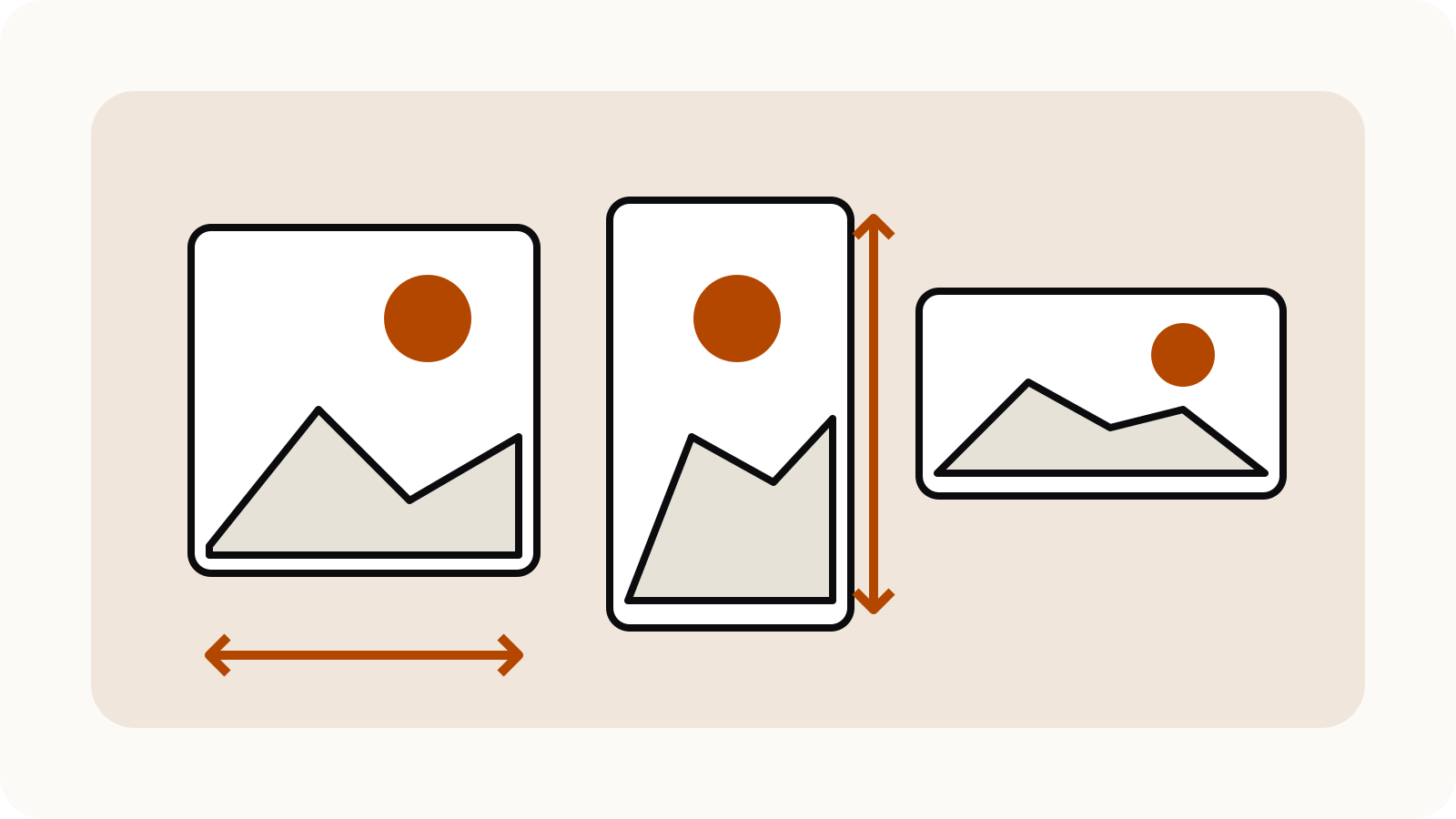
Midjourney aspect ratio sets the frame’s proportions; the exported pixel size is a separate check. Add --ar width:height at the end of the prompt. Start with the shape your final use needs, then describe a composition that fits it. A tall frame and a wide frame can require different placement of the subject, even when the subject and style stay the same.
On this page
Set the ratio explicitly
Midjourney’s aspect-ratio documentation says images default to 1:1. Use --ar or --aspect; the first number is width and the second is height. A larger first number gives a landscape frame.
Use integers: --ar 85:110 expresses an 8.5-by-11 proportion. Decimal values are unsupported. Dimensions such as 1920:1080 simplify to 16:9. The final pixel dimensions depend on the model version and upscaler, and upscaling may slightly alter proportions. Extreme ratios are experimental.
On the web, the Imagine bar’s settings can also set a default ratio for future prompts. Check that setting when a new prompt inherits an unexpected frame. Product details checked October 23, 2026.
Choose the shape before writing the scene
Use the space your layout actually provides. If a page needs a landscape illustration with a caption beneath it, a portrait image may leave large empty margins. If a vertical card needs a full-height object, a wide scene may force an awkward crop.
These are planning examples, not platform upload specifications:
| Intended composition | Starting ratio |
|---|---|
| One centred object with room around it | 1:1 |
| A horizontal scene with several elements | 16:9 |
| A tall object or vertical scene | 9:16 |
| A conventional portrait-photo shape | 2:3 |
Check the destination’s current requirements independently. A ratio does not specify a minimum resolution, safe area or file-size allowance.
Adapt the prompt to the frame
Midjourney’s Prompt Basics recommends concise descriptions and naming details that matter, including subject, medium, environment, light and composition. Parameters belong at the end.
The following original examples use the same fictional object in different layouts. They are prompt templates, not tested outputs:
studio photograph of an unbranded ceramic watering can,
centred composition, warm side light, plain cream backdrop --ar 1:1
studio photograph of an unbranded ceramic watering can on
the left of a wide cream tabletop, generous empty space on
the right, warm side light --ar 16:9
studio photograph of an unbranded ceramic watering can on a
tall narrow display plinth, full object visible,
warm side light, cream backdrop --ar 9:16
Choose one version for a real brief and evaluate the result. Check the handle, spout, object boundaries and usable empty space rather than accepting the first output because the frame is correct.
Change an existing image deliberately
Midjourney’s Editor includes Move / Resize controls for preset and custom aspect ratios. It also supports adjusting the canvas around an image.
Before editing, decide whether the result should retain the whole subject or crop part of it. Expanding the canvas gives the model new space to fill; changing the frame does not establish that every visual detail will remain identical. Save a copy of the earlier version so you can compare the result.
Use only images you have rights to upload. Inspect the export after editing, including its dimensions and any new edge content.