Image prompts work best when they describe a visible scene, its composition and the intended kind of picture. A useful brief tells the image model what belongs in the frame, how the elements are arranged and which visual treatment to use. This guide focuses on illustrations, object scenes and editing instructions. For camera-oriented briefs, use our separate photo prompts guide.
The examples below are original templates to adapt, informed by Google’s official image-generation prompting guide. They are starting briefs, not tested outputs or guarantees. Features and controls vary between models and interfaces.
On this page
Start with a scene you can describe
A prompt such as “make an impressive design” leaves the important choices unspecified. A more useful instruction identifies the subject, the purpose, the composition and the medium.
For example, “a ceramic mug on a plain tabletop” identifies an object and setting. Adding “viewed from above, handle pointing right, with room on the left for a heading” makes the layout more concrete. Asking for a cut-paper illustration changes the visual medium rather than simply requesting more quality.
Google’s image prompting guide provides templates for photorealistic scenes and other generation and editing tasks. Its broader approach supports describing the desired visual explicitly. The checklist here is an editorial way of organizing that brief, rather than a special model command.
| Element | Question to answer | Example |
|---|---|---|
| Subject | What should the viewer recognize first? | One terracotta plant pot |
| Setting | Where does it belong? | On a windowsill |
| Composition | How should the frame be arranged? | Pot on the right; clear space on the left |
| Medium | What kind of image is it? | Flat cut-paper illustration |
| Light or color | What should define its appearance? | Warm cream, charcoal and muted orange |
| Constraints | What must stay out or remain unchanged? | No lettering, no logo, no extra pots |
Include the details that matter to the result. A longer prompt is not automatically a clearer one.
A reusable image prompt template
Replace the brackets with the choices you can actually evaluate in an output.
Create a [medium] showing [main subject] in [setting].
Arrange the scene with [composition and viewing angle].
Use [palette, lighting or surface treatment].
The image is intended for [use], so leave [required space].
Include [essential details].
Do not include [specific unwanted elements].
A purpose helps explain a layout choice. “For a website header, leave empty space on the left” is more concrete than “make it professional.” Keep the instruction about the picture itself.
If the interface offers an aspect-ratio control, use its documented setting. A ratio mentioned in natural language should not be confused with a guaranteed export dimension or a model-specific parameter.
Illustration prompt: a single clear subject
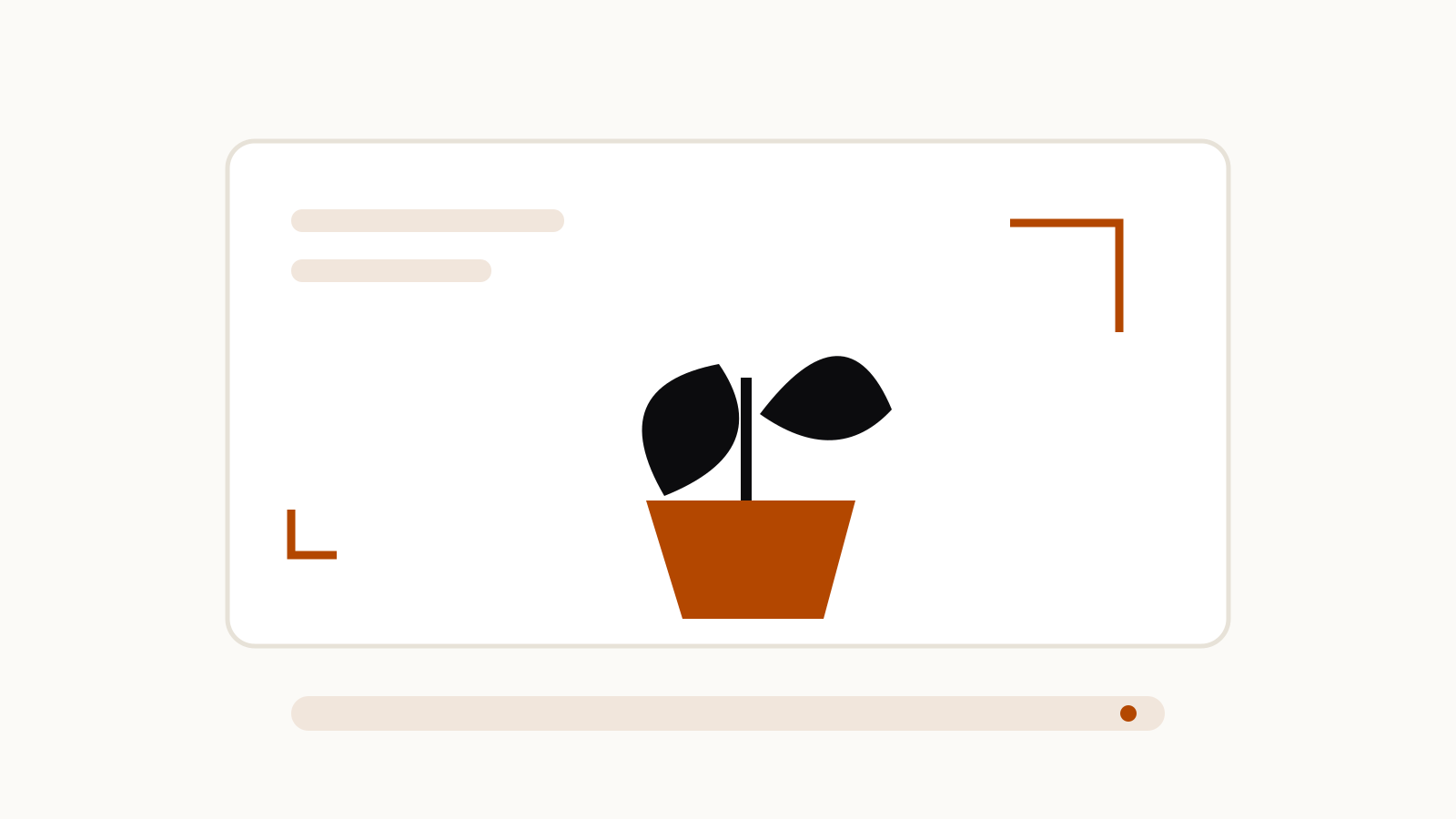
Create a flat cut-paper illustration of a terracotta plant pot
holding a small leafy plant on a windowsill. View the scene
straight on. Place the plant on the right half of the frame
and leave the left half mostly empty. Use warm cream,
charcoal and muted orange, with simple overlapping shapes.
No lettering, logos or additional pots.
This brief makes the subject, medium and layout explicit. If the result is crowded, revise the number of objects and their placement before adding adjectives about quality.
For a matching series, keep the medium, palette and composition instructions consistent while changing the subject. That describes a shared direction; it does not guarantee perfect visual consistency between generations.
Object scene prompt: specify materials and arrangement
Create an editorial still-life illustration of one unbranded
glass bottle, a folded linen cloth and two smooth stones.
Place the bottle slightly left of center on a matte shelf.
Use a side view, soft light from the right and a restrained
cream-and-blue palette. Make the glass translucent and the
cloth visibly woven. No label, text or extra objects.
Materials give the model observable properties to aim for. Translucent glass and woven cloth communicate more than “premium objects.”
Count the essential objects when their number matters. After generation, check the count and their placement rather than assuming that an explicit instruction was followed.
Layout prompt: reserve space deliberately
Create a wide editorial illustration for a gardening article.
Show a small watering can and seed trays grouped in the
lower-right corner. Keep the upper-left area plain and quiet
for a separately added headline. Use a pale background,
simple ink outlines and muted green accents. No text.
Add the actual headline separately if its typography and wording need to be exact. This is a production recommendation, not a claim that every model cannot render text.
Do not use a generated diagram as the source of a numerical or scientific fact. For precise charts, use verified data and a plotting tool. An illustration can establish a visual theme without pretending to be measured evidence.
Editing prompt: name the change and the preservation rules
Use an image-editing feature that the chosen tool documents. Upload only images you have permission to use.
Edit the uploaded still life. Change the background to pale
blue and remove the empty cup on the left. Preserve the
central bowl, its contents, its position and the viewing
angle. Keep the lighting direction unchanged. Add no new
objects or text.
The edit request separates what should change from what should remain. Google’s documentation describes text-and-image editing and conversational iteration, but the available workflow depends on the model and interface.
Inspect the edited picture for unintended changes. A preservation instruction expresses the desired result; it is not evidence that all other pixels or details remain identical.
For Gemini-specific editing examples, see Gemini prompt for photo editing.
Improve one failure at a time
Read the output against the brief. Identify a visible mismatch, then request a correction that addresses it.
| Mismatch | More specific next instruction |
|---|---|
| Too many objects | Keep exactly one bottle and two stones; remove the other objects |
| No room for a heading | Move the subject to the right third and clear the left half |
| Wrong medium | Use flat paper shapes with no photographic texture |
| Distracting background | Replace the background with one plain cream surface |
| An edit changes the main object | Preserve its shape, color and placement; change only the background |
These are revision examples, not promises of perfect compliance. Check the next result again. If several requirements conflict, simplify the brief or decide which constraint has priority.
Choose the tool-specific guide when controls matter
This page covers writing a visual brief. It does not make every image tool’s commands interchangeable.
Use ChatGPT image prompts for OpenAI’s documented guidance, Nano Banana prompts for Gemini examples and the Midjourney parameters guide for its specific controls. The prompt library offers individual use cases with their sources.
Keep the visible instructions separate from settings such as export size, quality and model version. Confirm those in the selected tool’s own documentation.