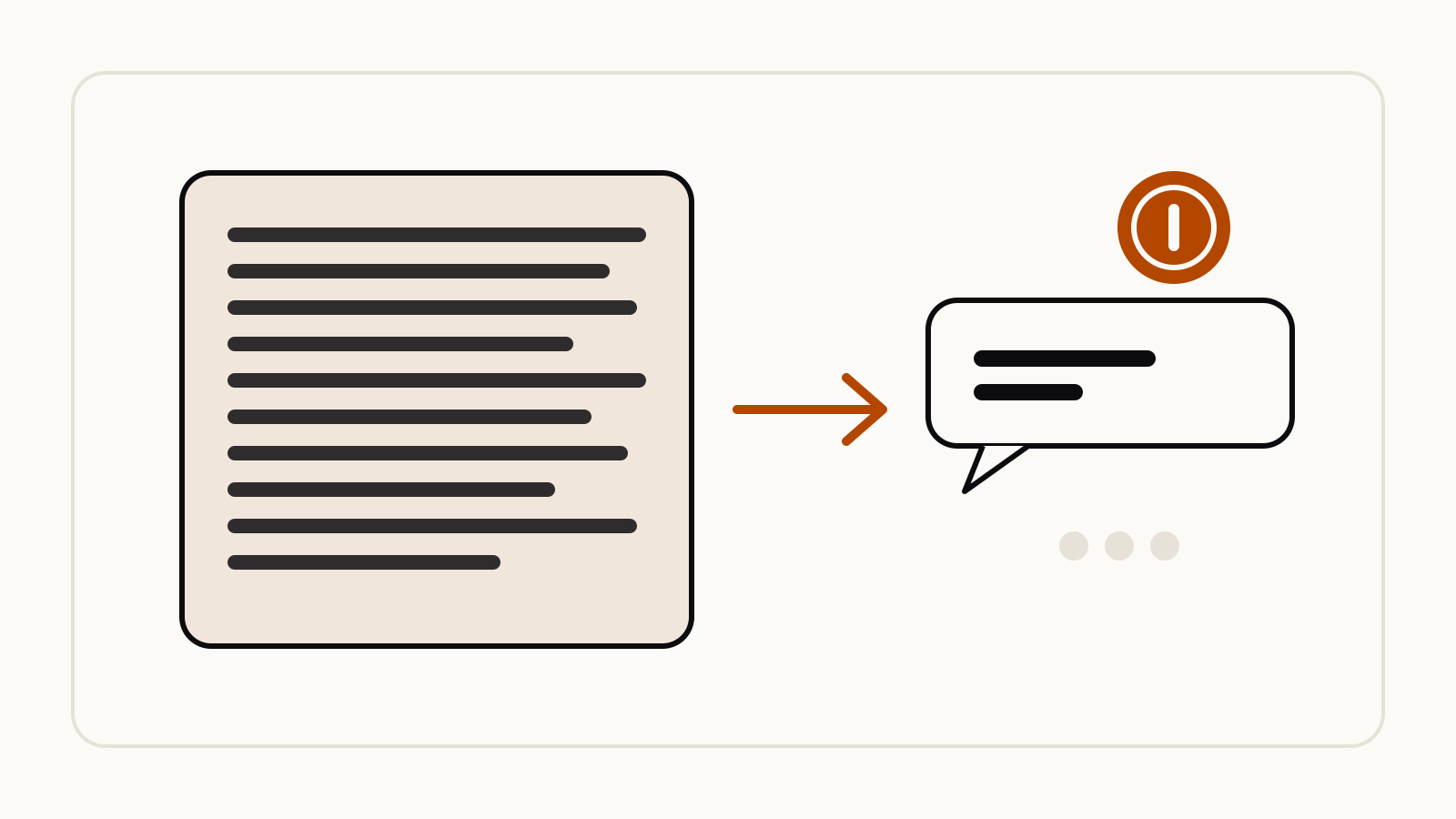
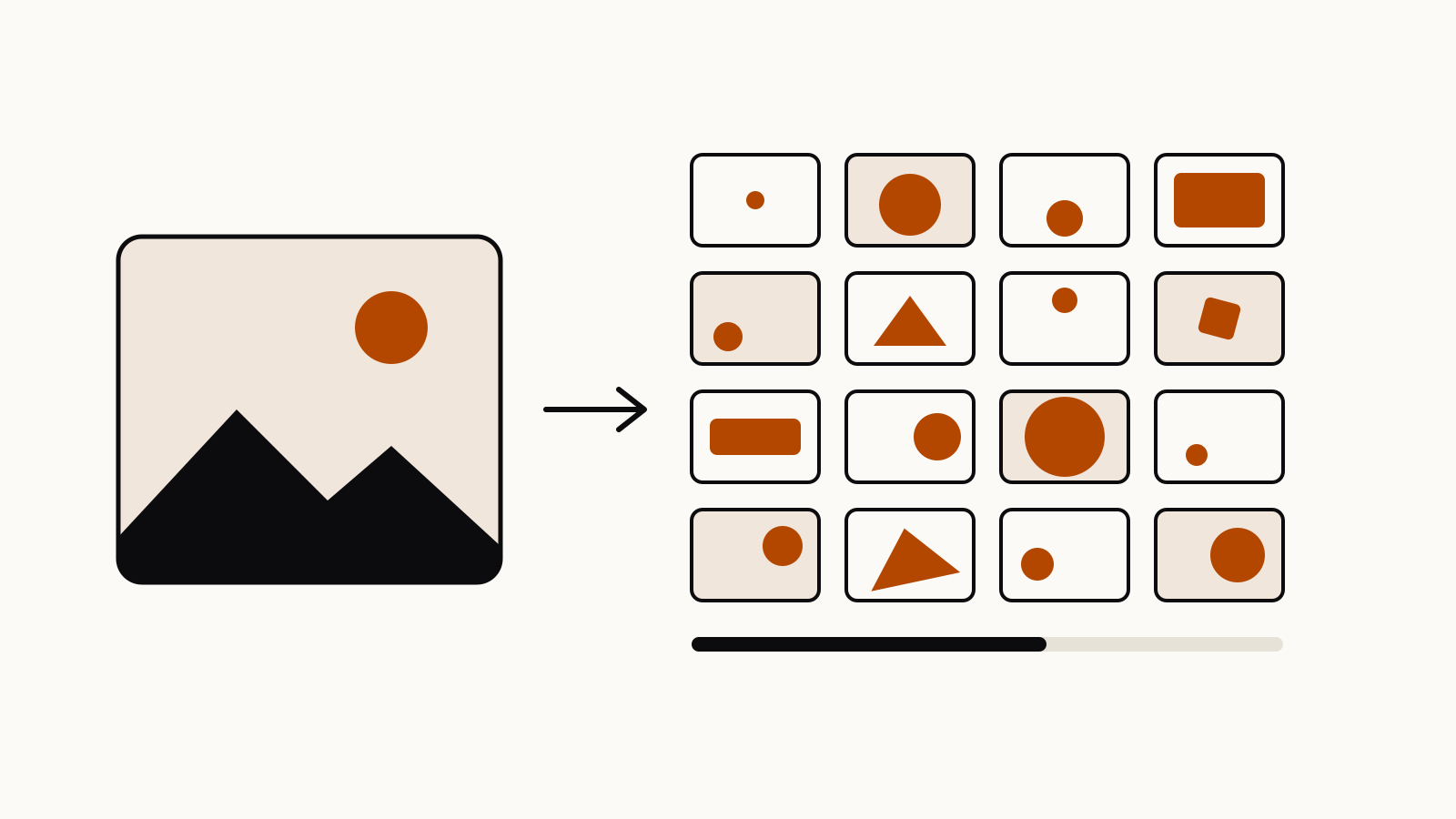
A prompt shared by @Framer_X on X turns a single uploaded image into a 15-second Seedance 2.5 video that cuts between up to 20 camera angles of the same scene. The trick is in the structure of the Seedance camera angles prompt: everything about the scene is locked, and only the camera position, angle, lens and framing may change, with a hard cut between every shot.
On this page
The prompt, as shared on X
The post, shared by @Framer_X on X, opens:
Such an interesting Seedance 2.5 trick. You can generate up to 20 different camera angles just from one image.
The author’s steps: upload your source image to Seedance 2.5 (or 2.0), then generate a 15-second video with this prompt. @ TAG IMAGE is the author’s placeholder for the image you tag in Seedance.
Create a rapid-fire cinematic camera-angle showcase of @ TAG IMAGE

TOTAL CAMERA SHOTS: 20

Keep the characters, environment, clothing, lighting, action, and overall scene completely consistent throughout the entire video. Do not change the location or introduce new elements.

Use 20 clearly distinct camera setups, including: extreme wide shot, wide establishing shot, medium wide shot, medium shot, medium close-up, close-up, extreme close-up, low angle, extreme low angle, high angle, overhead shot, top-down shot, ground-level shot, eye-level shot, Dutch angle, profile shot, three-quarter angle, front-facing shot, rear angle, over-the-shoulder shot, reverse over-the-shoulder shot, side angle, foreground-framed shot, long-lens shot, wide-angle close shot, symmetrical composition, off-center composition, tracking angle, orbiting angle, and dramatic perspective angle.

IMPORTANT:
- Use HARD CUTS between every shot.
- Never hold one camera angle for longer than 1 second.
- Do not repeat any camera angle or composition.
- Do not create long continuous camera movements between angles.
- The action should remain continuous across all cuts.
- Only the CAMERA POSITION, CAMERA ANGLE, LENS, and FRAMING should change.
- The subject and scene must remain visually consistent.
The result is the author’s report from their own post; we link the original rather than copy the video.
Why the prompt is built this way
The prompt has three blocks, and each one does a separate job.
- A consistency lock. Characters, clothing, lighting, location and action are named one by one and frozen. Video models tend to drift when a clip has many cuts, so the prompt removes every variable except the camera.
- A shot menu. It lists 30 camera setups for 20 shots, so the model chooses from a menu instead of inventing angles. Every entry is standard film vocabulary: extreme wide, Dutch angle, over-the-shoulder, top-down.
- Hard rules for the edit. At 20 shots in 15 seconds each shot gets about 0.75 seconds, which is why the prompt caps every angle at one second and bans long camera moves between them. “The action should remain continuous across all cuts” keeps the clip from feeling like 20 separate videos.
How to adapt it
- Fewer, calmer shots. Lower
TOTAL CAMERA SHOTSto 6 or 8 and trim the menu to the angles you want; raise the one-second cap to match. - A product turnaround. Keep only the angles that suit an object, such as close-up, top-down, three-quarter angle and orbiting angle.
- Other video models. The shot names are the same vocabulary Google recommends for Veo; our guide to Veo 3 prompts lists Google’s camera and composition terms. Clip lengths differ between tools, so set the shot count to fit the clip.
- Your own image. Use a picture you own or have permission to use, and leave out real, identifiable people who have not agreed to it.