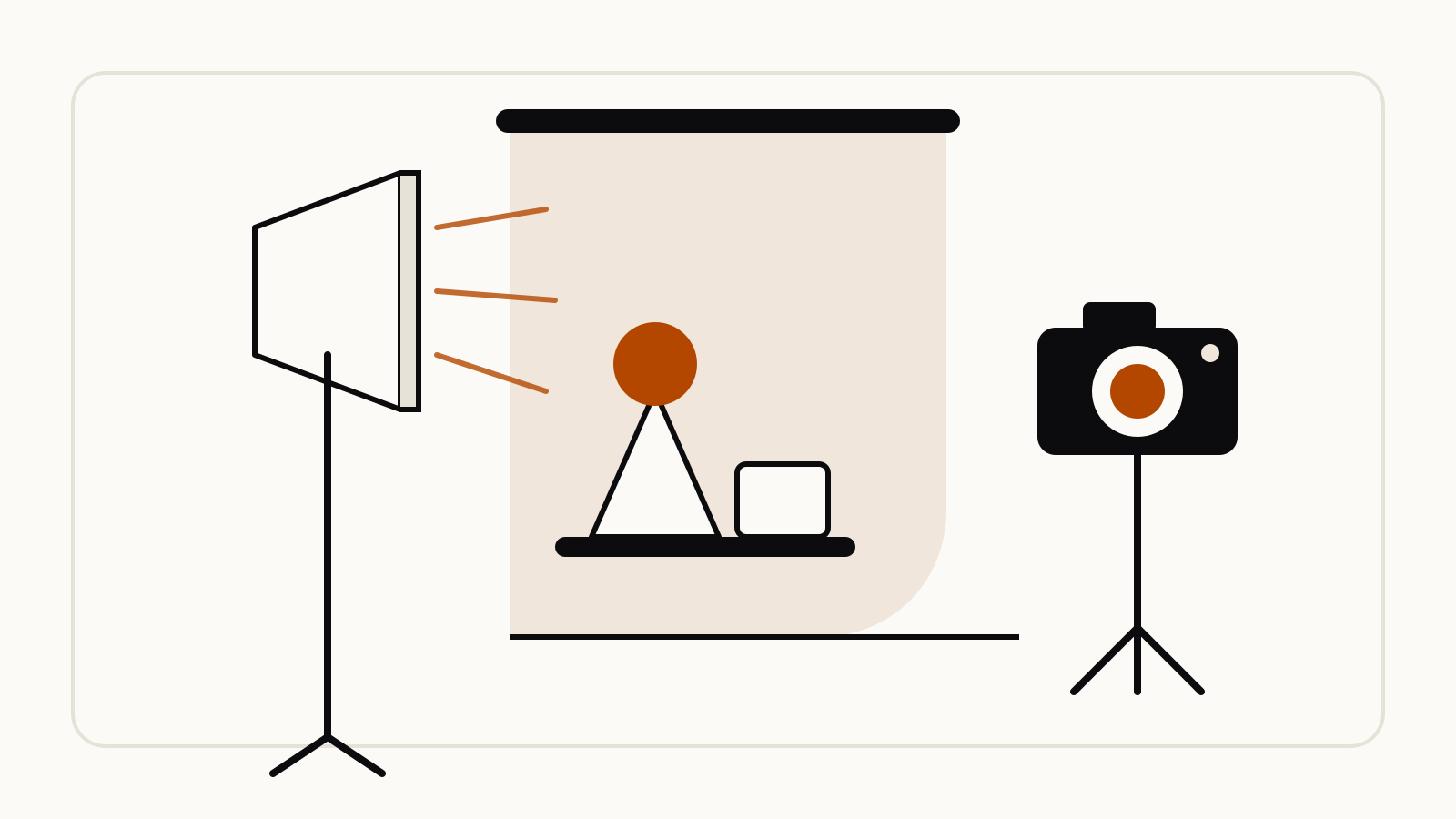

Strong Veo 3 prompts read like a director’s shot list: subject, action, setting, camera, style and sound. Google’s video generation prompt guide breaks a prompt into exactly these parts, and Google DeepMind’s Veo 3 prompt guide adds that “the more detail you add, the more control you’ll have over the final output.”
The current version is Veo 3.1. Google’s Gemini API documentation describes it as a model for 8-second videos at 720p, 1080p or 4K “with natively generated audio”. Below is the prompt structure, each part with an official example quoted word for word, and where you can use Veo.
On this page
The parts of a Veo prompt
Google’s guide says “You don’t need to use all elements in every prompt,” but each one gives you a lever:
- Subject: the who or what. Specificity “helps avoid generic outputs”.
- Action: what is happening, including subtle movements and expressions.
- Scene or context: location, time of day, weather and era.
- Camera angle: eye level, low angle, bird’s-eye view, close-up, over-the-shoulder.
- Camera movement: static, pan, tilt, dolly, truck, zoom, crane, aerial, handheld, arc.
- Lens and optical effects: wide-angle, telephoto, shallow depth of field, rack focus.
- Visual style: lighting, tone, artistic style and ambiance.
- Temporal elements: slow motion, time-lapse, gradual change.
- Audio: sound effects, ambient noise and dialogue.
Subject and action
A detailed subject, from Google’s guide:
A hyper-realistic, cinematic portrait of a wise, androgynous shaman of indeterminate age. Their weathered skin is etched with intricate, bioluminescent circuit-like tattoos that pulse with a soft, cyan light. They are draped in ceremonial robes woven from dark moss and shimmering, metallic fiber-optic threads. In one hand, they hold a gnarled wooden staff entwined with glowing energy conduits and topped with a floating, crystalline artifact. Perched on their shoulder is a small, mechanical owl with holographic wings and camera-lens eyes that blink with a soft, red light. Their expression is serene and ancient, eyes holding a deep, knowing look
Listing: bioluminescent shaman portrait.
For action, Google shows how to sequence beats inside one clip:
A gloved hand carefully slices open the spine of an ancient, leather-bound book with a scalpel. The hand then delicately extracts a tiny, metallic data chip hidden within the binding. The character's eyes, previously focused and calm, widen in a flash of alarm as a floorboard creaks off-screen. They quickly palm the chip, their head snapping up to scan the dimly lit room, their body tense and listening for any other sound
Listing: spy slicing open an old book.
Scene and context
The scene is a rain-slicked, crumbling street in a forgotten city, shrouded in perpetual twilight. Giant, bioluminescent mushrooms have sprouted from the cracked asphalt, casting an eerie, pulsating green and purple glow onto the decaying facades of skeletal skyscrapers. A gentle, constant rain creates shimmering reflections in the puddles below, and the only sounds are the soft patter of rain and a low, otherworldly hum from the glowing fungi
Listing: forgotten city with glowing mushrooms.
Camera angles and movement
Google notes that “Some advanced camera angles are not officially supported,” so results can vary. Its examples:
A bird's-eye view of a vast, intricate maze made of high green hedges. A lone figure in a red coat is visible, moving through the labyrinthine paths below
Listing: bird’s-eye view of a hedge maze.
An extreme close-up of a single, glistening drop of rain as it lands on the petal of a vibrant red rose, causing the petal to tremble slightly
Listing: raindrop landing on a rose petal.
A slow, dramatic zoom in on a mysterious, ancient compass lying on a dusty map. The camera starts wide, showing the map and a flickering candle, then smoothly zooms in until the intricate, glowing symbols on the compass face fill the entire frame
Listing: slow zoom on an ancient compass.
Short prompts work for simple moves. Google’s aerial example is one line:
Sweeping aerial drone shot flying over a tropical island chain
Listing: drone shot over a tropical island chain.
Lens effects
Rack focus shifts sharpness from one plane to another within a single shot:
A medium shot of a detective's hand in the foreground, holding a single, spent bullet casing. The camera then performs a slow rack focus, shifting from the casing to reveal the anxious face of a witness in the background, now in sharp focus
Listing: rack focus from a bullet casing to a witness.
Time: slow change and time-lapse
Google advises keeping clip length in mind for events that take longer. Two examples:
A close-up of a single red rose bud, its petals tightly closed. The camera remains static as the flower slowly and gracefully unfurls over the course of the shot, revealing its vibrant inner layers. The evolution is subtle, showing a clear but gradual change
Listing: rose bud slowly blooming.
A time-lapse of a bustling city skyline as day transitions to night. The camera is static. Watch as the sun sets, casting long shadows, and the city lights begin to twinkle on, with streaks of car headlights moving along the streets below
Listing: city skyline time-lapse.
Audio and dialogue
Google’s guide says to “Clearly specify if you want audio” and recommends separate sentences for it. Dialogue is written as “character says: line”. The official example:
A medium shot in a dimly lit interrogation room. The seasoned detective says: Your story has holes. The nervous informant, sweating under a single bare bulb, replies: I'm telling you everything I know. The only other sounds are the slow, rhythmic ticking of a wall clock and the faint sound of rain against the window
Listing: interrogation room scene with dialogue.
DeepMind’s guide shows another way: add an “Audio:” section after the visuals.
A keyboard whose keys are made of different types of candy. Typing makes sweet, crunchy sounds. Audio: Crunchy, sugary typing sounds, delighted giggles.
Negative prompts
Google recommends against “no” or “don’t” in the prompt. Instead, list unwanted elements in the negative prompt field, for example “urban background, man-made structures, dark, stormy, or threatening atmosphere.”
Where you can use Veo
- Google Flow. Google’s Flow help lists Veo 3.1 Lite, Veo 3.1 Fast and Veo 3.1 Quality, paid for with Flow credits. Per generation: Lite costs 10 credits (5 for Ultra subscribers), Fast costs 20 (10 for Ultra), Quality costs 100. Monthly credits: Google AI Plus 200, Pro 1,000, Ultra $100 plan 10,000, Ultra $200 plan 25,000. All Flow outputs carry an invisible SynthID watermark.
- Gemini API and Vertex AI, for developers, through the Veo 3.1 API.
- Gemini app. Google says its new video model, Gemini Omni, “will replace Veo in the Gemini app”, and the Gemini help page now describes video generation with Gemini Omni (Gemini Apps Help). Video generation there requires a Google AI plan. The prompt structure on this page still applies.
Plan details: Google AI Pro and Google AI Ultra.