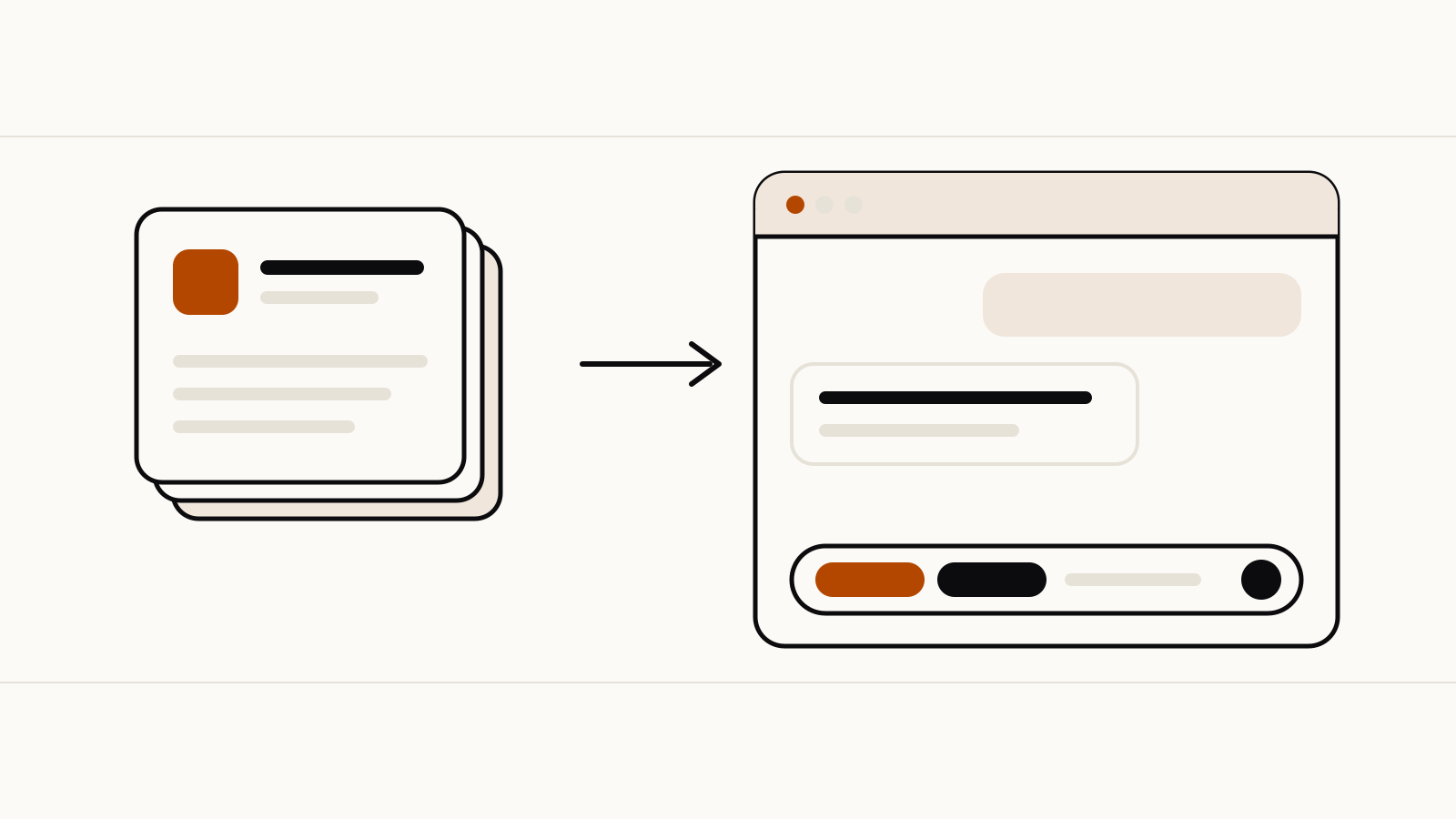
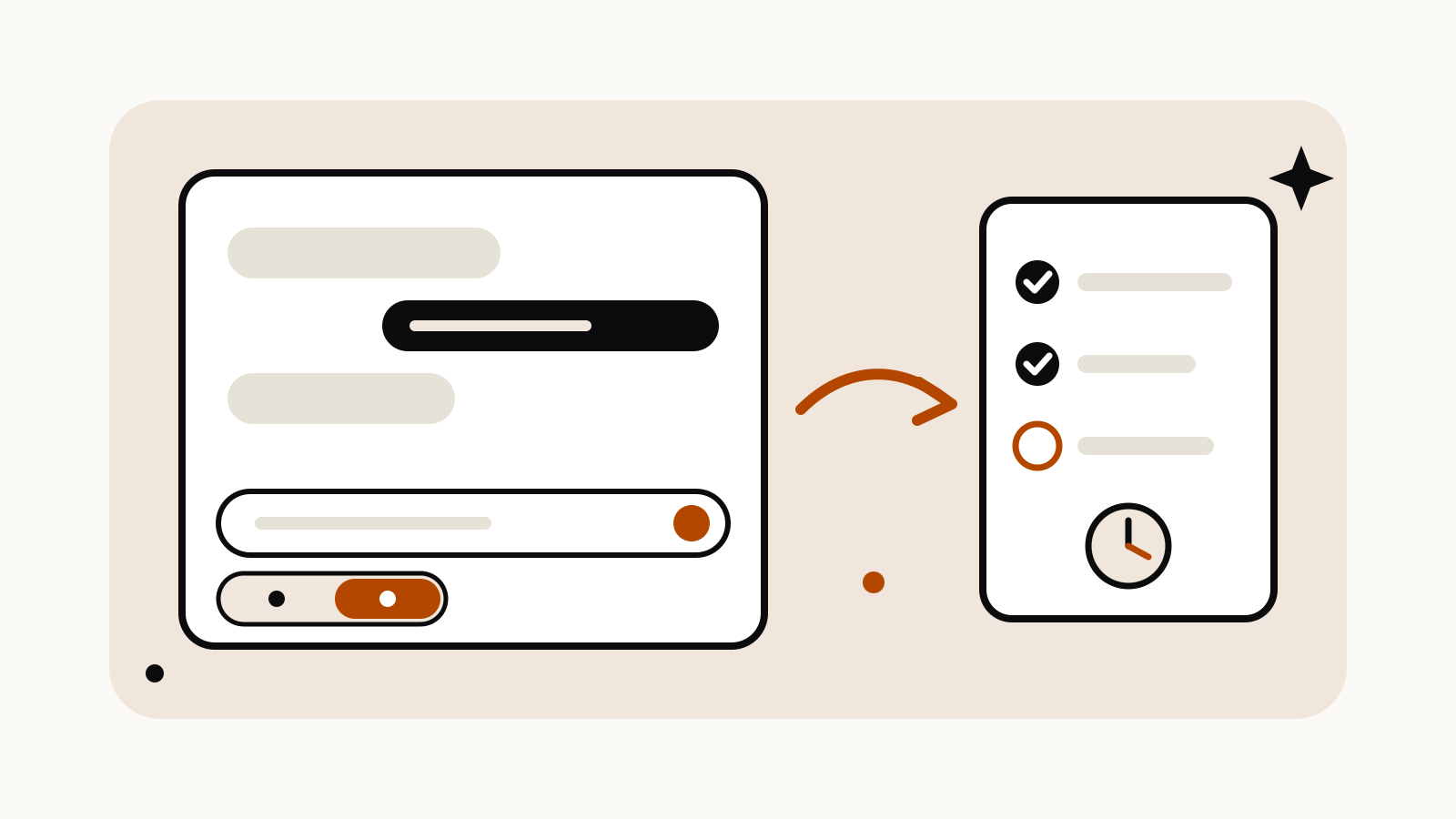
Gemini Task mode is the new name for Spark, Gemini’s background agent, and it now lives in the main chat window. Since October 13, 2026, a Chat and Task toggle sits next to the prompt box. Pick Task, describe the job and when it should run, and Gemini can keep working on it while you are away. It needs a Google AI Pro or Ultra plan and a personal account.
On this page
What changed on October 13
Google announced the toggle in its Gemini app post of October 13: “a simple toggle from chat to tasks. When you choose tasks, Gemini can work for you even when you’re not at your computer.” The same post says Gemini now connects to more than 40 apps, naming Instacart, OpenTable, Adobe and Shopify.
Google’s help article, Manage your tasks & workflows in Gemini Apps, explains the rename. Spark had been in beta with subscribers since May, and “people really wanted Gemini to just help them finish ‘tasks’”, so Google renamed it Task. Your existing tasks and schedules stay in the sidebar.
What is different in practice:
- No separate Spark screen. On the web you click Task below the text box instead of switching to Spark from the sidebar.
- Skills use @. To name a skill in a task, the help article now says to type
@and pick it. Our earlier story on Gemini skills replacing Gems described the slash. Skills in the Gemini app began a gradual rollout on October 13, according to Google’s Workspace Updates blog, with completion expected by mid-November. - Schedules in one place. In the web app you can pause and resume scheduled tasks from the Scheduled page.
Who can use tasks
From Google’s help article, you need all of these:
- Age 18 or over
- A personal Google Account (work and school accounts are not supported yet)
- A Google AI Pro or Ultra subscription
- Keep Activity turned on
- An opt-in to Personal Intelligence
Tasks are not available in the European Economic Area, Switzerland, the United Kingdom or Nigeria, and they run only in the Gemini mobile app, the Gemini app on Mac and gemini.google.com.
Limits that apply
Tasks draw on the same compute-based usage limits as the rest of the Gemini app, and Google says how much each task uses depends on how many you run and how complex they are. You can have up to 15 tasks running at once; a scheduled task will not start while 15 are already running. How the general Gemini limits work is in our guide to whether Gemini has a limit.
A task that browses the web with your local Chrome needs your computer and Chrome to stay awake. With Gemini’s remote browser, the task continues after you close your device, but it pauses at steps such as signing in until you take over.
How to prompt a task
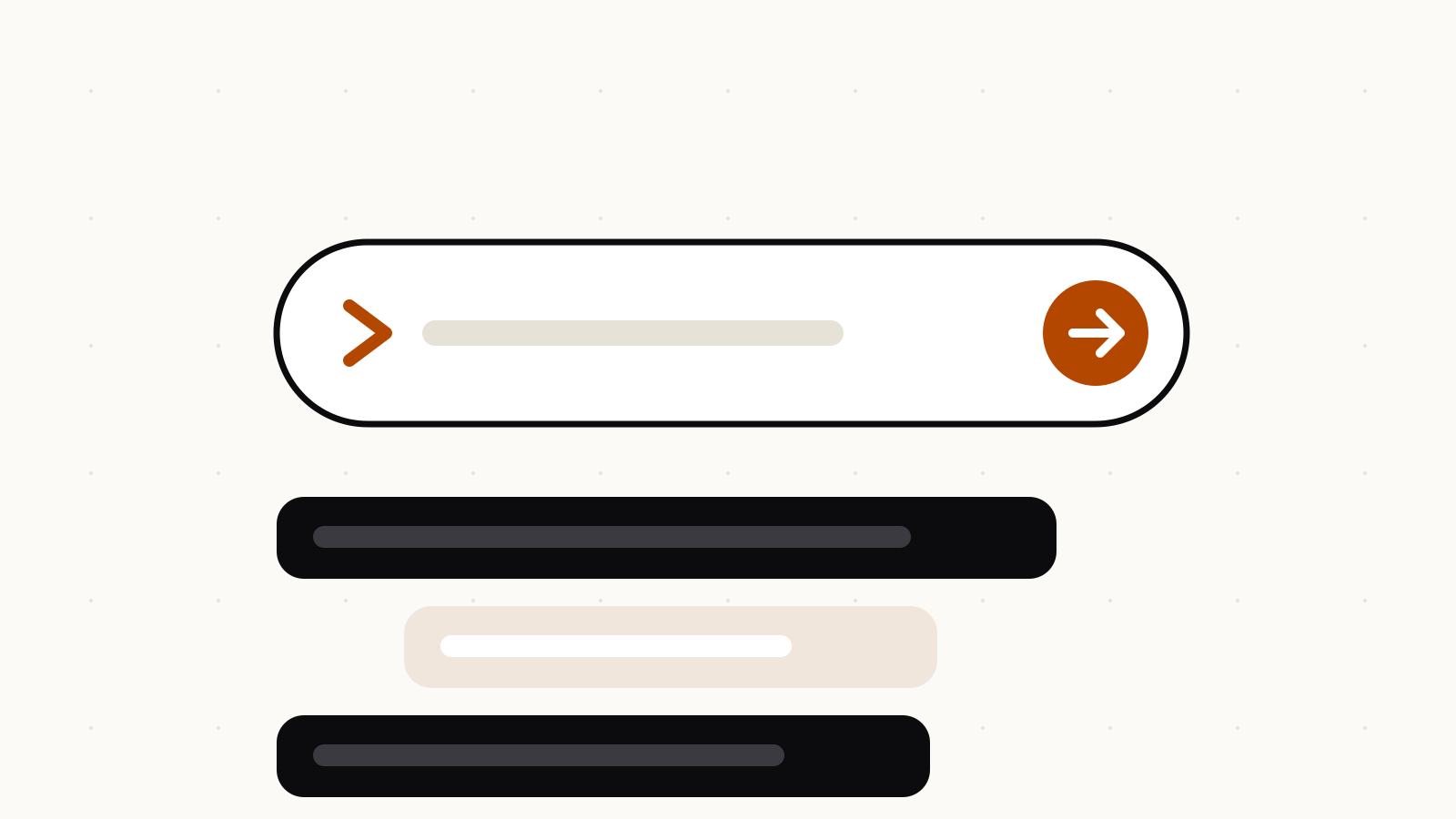
Google’s help article lists what a task prompt can carry. Put these in one message:
- The goal, stated as an outcome: what should exist or be done at the end.
- When to run it, at a time or after an event, if it should repeat.
- A skill with
@, if you have one for the job. - The file you want back, such as a PDF, a document, a spreadsheet or a presentation.
An example written to that pattern:
Every Monday at 8:00, collect the newsletters in my Gmail from the past week, summarize each in two sentences, archive them, and save the summaries as one Google Doc titled "Newsletter digest" with the date.
If you are not sure where to start, Google says you can type “set up”, “get started” or “interview me” in a task and Gemini will walk you through your first skills and tasks.
Google also warns against typing sign-in details, payment details or other sensitive information into a task thread. When a website needs a login, take over Gemini’s browser and enter it on the page yourself.