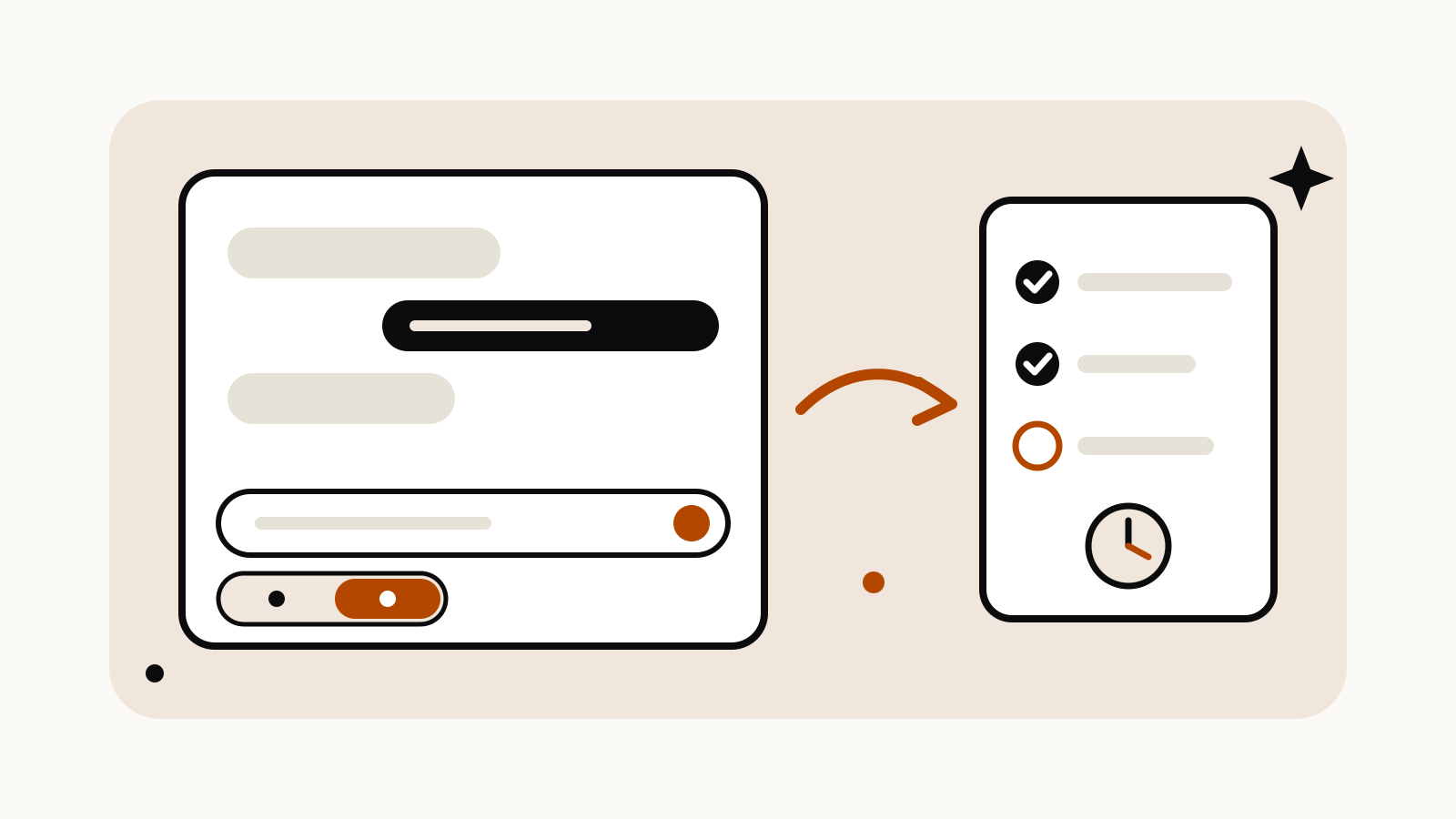
Google is replacing Gems with skills in the Gemini app. Announced on September 30, 2026, skills are saved instructions you call by typing a forward slash and the skill’s name in the prompt bar, and Gemini can also run one by itself when your prompt matches it. Skills are rolling out in Gemini chat globally, with Google Workspace accounts to follow in the coming weeks, according to Google’s announcement.
On this page
What skills do that Gems did not
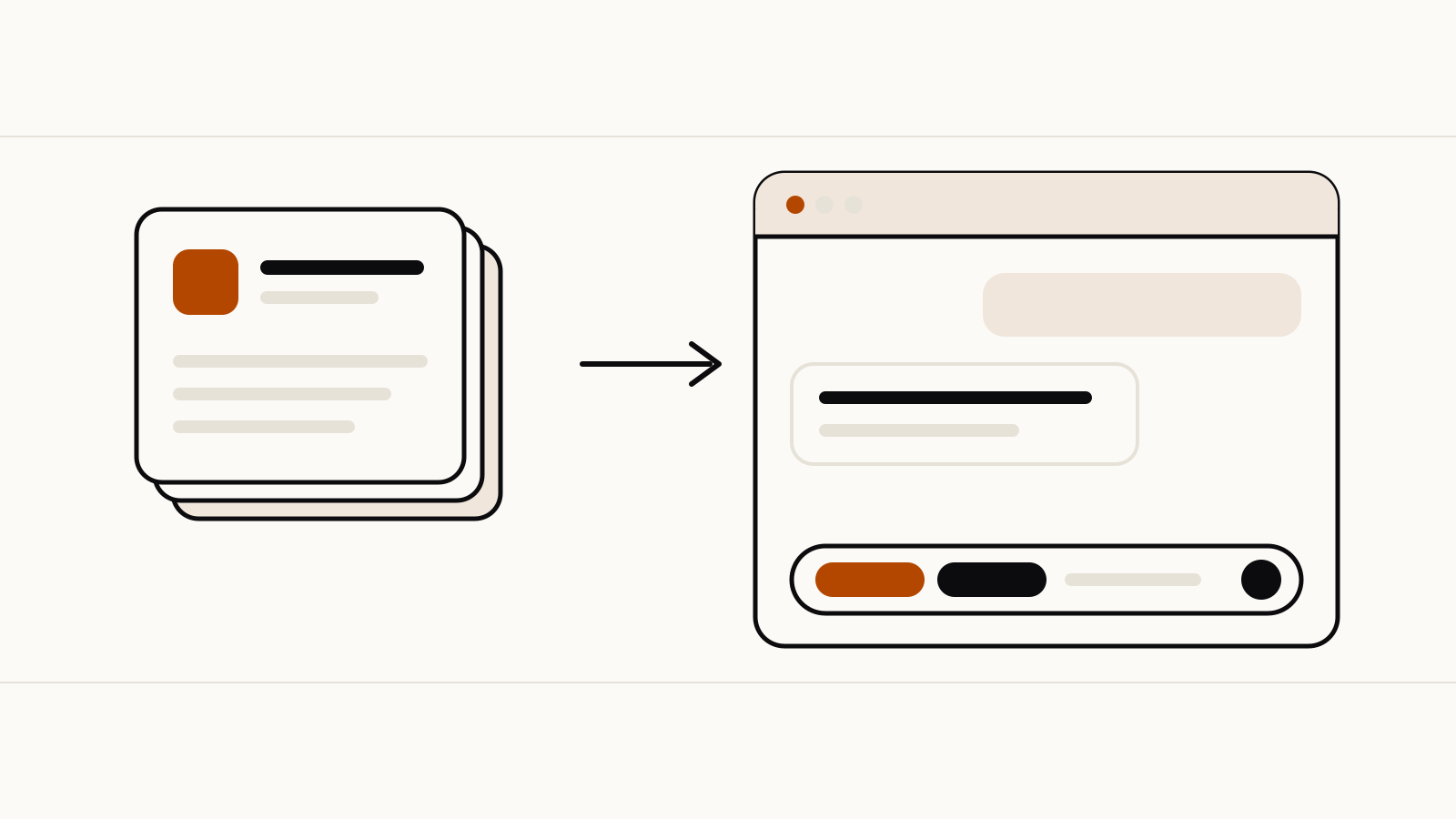
A Gem was a separate chatbot you opened in its own window. A skill works inside the chat you already have open. Google’s skills overview says skills let you use them “right in your current chat without having to switch tabs or stacking multiple skills together”.
What Google lists in the announcement:
- Call it by name. Type
/and the skill’s name in the prompt bar. - Automatic use. Gemini can build skills from your chats and run them “whenever you enter a matching prompt”.
- Stacking. Several skills can run at once. Google’s example combines a writing style skill with a brand guidelines skill “to create on-brand assets in your voice”.
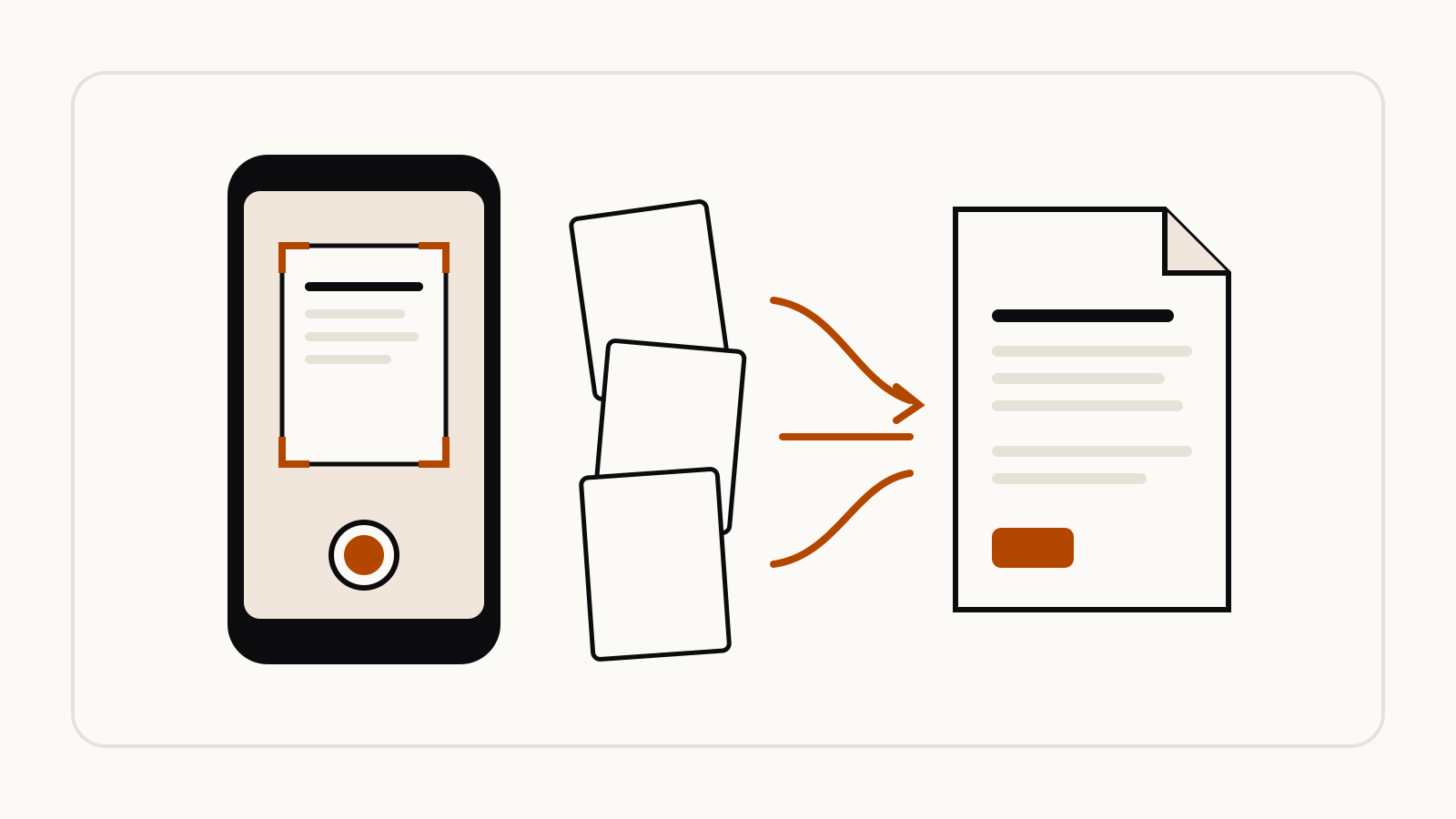
- Reference files. From launch day a skill can include “plain text documents, PDFs, or images”.
Two premade skills appear on the overview page: /prep-for-meetings, which builds a meeting brief from your Workspace apps including Google Calendar, and /match-my-writing-style, which learns from your writing across Workspace apps.
When Gems stop working
Google will remove support for Gems on these dates and migrate existing Gems into skills automatically when they go away:
| Account | Gems support ends |
|---|---|
| Personal Google accounts | Starting November 2026 |
| Workspace business, enterprise and nonprofit | March 2027 |
| Workspace education | June 2027 |
Opal, Google’s experiment for building mini apps, turns down in November as well. A footnote in the announcement adds that Gems made in Google Labs “will also turn down, though these will not migrate into skills”.
Some Gem features are not in skills yet. Google says sharing skills with other people, adding files from Google Drive and adding notebooks from Gemini Notebook arrive “in the coming weeks”. If you depend on a shared Gem, copy its instructions somewhere safe before November.
Who can use skills now
The announcement’s footnote reads: “Available to all Google AI subscription tiers; currently available to 18+ with U18 coming soon.” The Gemini release notes entry for September 30 says skills are “currently available to 18+ and coming to more users soon”. Rollouts are gradual, so the slash menu may reach your account later than the announcement date.
How to create a skill
Google’s overview gives two routes:
- Ask in a regular chat, for example: “Create a skill that formats my weekly status reports”.
- Build, upload or customize a skill in the skills manager in settings. To import a skill you wrote elsewhere, go to Settings > skills > Upload and select a
skill.mdfile.
How to prompt it: write a skill Gemini will pick up
Google’s help article Write effective skills for Gemini Apps explains that Gemini decides whether a skill is relevant by reading only its name and description, and opens the full instructions only when it needs them. That makes the first two lines the most important part of the prompt. Google’s rules:
- Name: lowercase words joined by hyphens, starting with a verb. Google’s example is
plan-meal-from-recipeinstead ofrecipe-data. - Description: one or two sentences in the third person, saying what the skill does, then a sentence that starts with “Use when…”. The limit is 1,024 characters.
- Instructions: teach a type of task, not one task. Add an output template, a “common mistakes” section, and tell Gemini what to do when information is missing instead of guessing.
Here is our example of a skill written to those rules. It turns a short brief into an image prompt that follows Google’s product photo pattern, covered in our guide to the Gemini AI photo prompt:
Name: write-product-photo-prompt
Description: Writes a Nano Banana prompt for a studio product photo from a short product brief. Use when asked for a product shot, an e-commerce image or a packshot prompt.
Instructions:
1. If the product, its material and color, the background surface or the aspect ratio is missing, ask for it. Do not guess.
2. Write one paragraph: product, surface, lighting setup, camera angle, the detail in sharp focus, aspect ratio.
3. Describe the scene positively: write "a plain seamless backdrop" rather than "no clutter".
4. Return only the prompt, then one line suggesting what to change for a variation.
The same habits make a good system prompt in any assistant; see our explainer on the system prompt.