
A good Gemini AI photo prompt describes the scene like a photographer: subject, action, setting, light, lens and format. Google’s own advice for its image model, Nano Banana, puts it in one line: “Describe the scene, don’t just list keywords.” A full sentence or paragraph gets you a more coherent photo than a string of tags.
Below are Google’s official prompt templates for photorealistic scenes, product shots, edits of your own photos, style transfer and combining images, each with Google’s example prompt quoted word for word. Every example is also saved in our prompt library so you can copy it in one click.
On this page
How Gemini reads a photo prompt
Gemini’s image generation is called Nano Banana. Google’s Gemini API documentation describes it as “Gemini’s native image generation capabilities”, and the Gemini app creates images with Nano Banana 2, with Nano Banana Pro available to paid subscribers for redoing an image (Gemini Apps Help). Our guide on how to use Nano Banana covers the models and where to find them.
Because the model works from language rather than tags, Google’s prompting guide for Nano Banana Pro recommends covering five things in every prompt:
- Subject: who or what is in the image, described specifically.
- Composition: how the shot is framed (extreme close-up, wide shot, low angle, portrait).
- Action: what is happening.
- Location: where the scene takes place.
- Style: the overall look, such as photorealistic, film noir or 1990s product photography.
For photos specifically, add camera and light. Google suggests terms like “A low-angle shot with a shallow depth of field (f/1.8)” and “Golden hour backlighting creating long shadows”, and asks you to state the format, for example “A 9:16 vertical poster”.
Photorealistic scene: the main template
For realistic images, Google’s developer guide says to “think like a photographer”. This is its template:
A photorealistic [shot type] of [subject], [action or expression], set in [environment]. The scene is illuminated by [lighting description], creating a [mood] atmosphere. Captured with a [camera/lens details], emphasizing [key textures and details]. The image should be in a [aspect ratio] format.
Google’s filled-in example:
A photorealistic close-up portrait of an elderly Japanese ceramicist with deep, sun-etched wrinkles and a warm, knowing smile. He is carefully inspecting a freshly glazed tea bowl. The setting is his rustic, sun-drenched workshop. The scene is illuminated by soft, golden hour light streaming through a window, highlighting the fine texture of the clay. Captured with an 85mm portrait lens, resulting in a soft, blurred background (bokeh). The overall mood is serene and masterful. Vertical portrait orientation.
Source: Google Developers Blog. Library listing: photorealistic portrait of a ceramicist.
Notice that the person is invented. Write fictional subjects this way and swap the details (age, trade, setting, light) to get your own photo.
Product photo template
For e-commerce and ad shots, Google’s template:
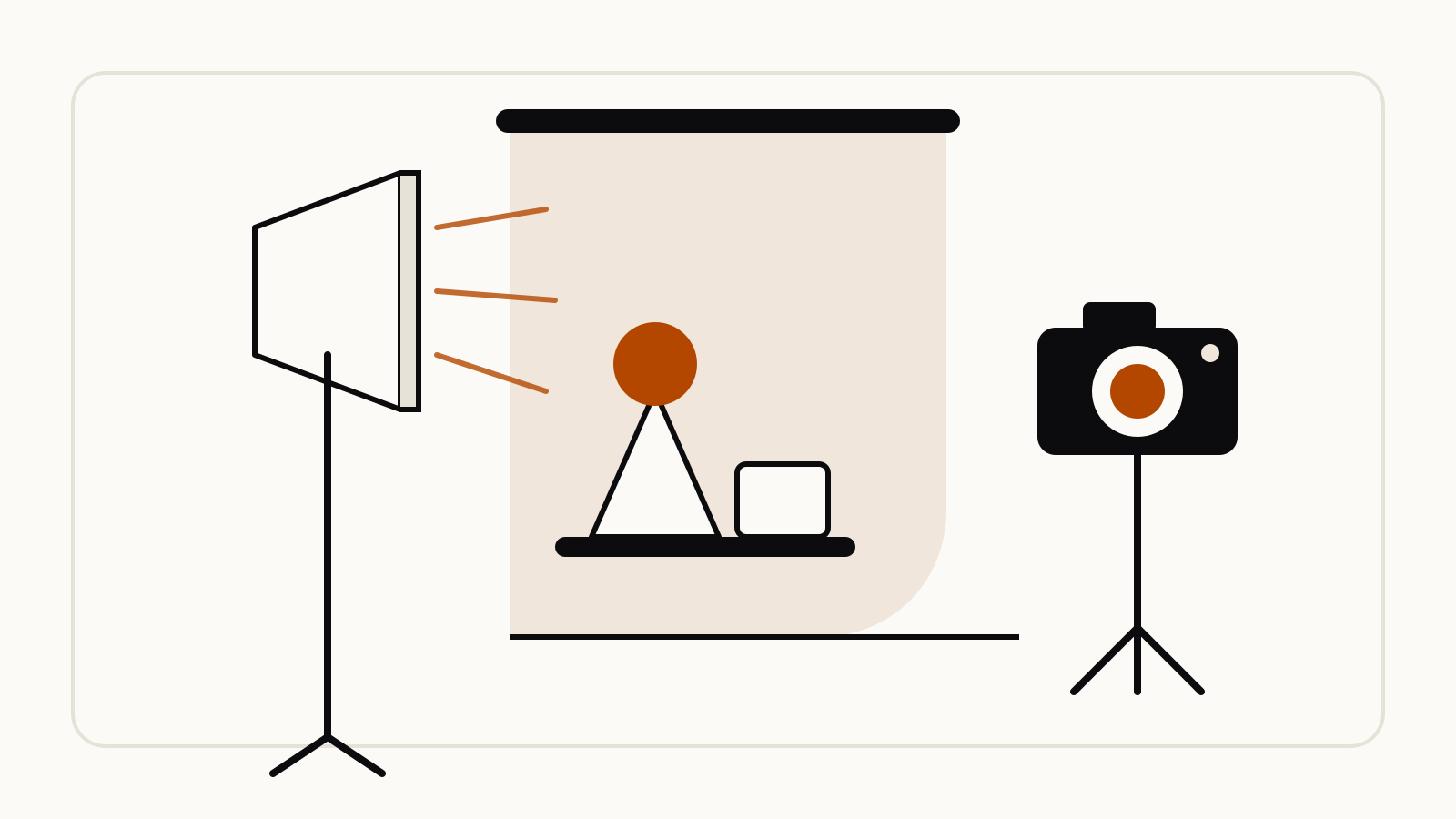
A high-resolution, studio-lit product photograph of a [product description] on a [background surface/description]. The lighting is a [lighting setup, e.g., three-point softbox setup] to [lighting purpose]. The camera angle is a [angle type] to showcase [specific feature]. Ultra-realistic, with sharp focus on [key detail]. [Aspect ratio].
Example from the same guide:
A high-resolution, studio-lit product photograph of a minimalist ceramic coffee mug in matte black, presented on a polished concrete surface. The lighting is a three-point softbox setup designed to create soft, diffused highlights and eliminate harsh shadows. The camera angle is a slightly elevated 45-degree shot to showcase its clean lines. Ultra-realistic, with sharp focus on the steam rising from the coffee. Square image.
Library listing: matte black mug product photo. For a backdrop with room for text, see the minimalist background with negative space.
Editing your own photo: add, remove or change one thing
Upload a photo and describe the change. Google’s template for adding or removing elements:
Using the provided image of [subject], please [add/remove/modify] [element] to/from the scene. Ensure the change is [description of how the change should integrate].
Using the provided image of my cat, please add a small, knitted wizard hat on its head. Make it look like it's sitting comfortably and matches the soft lighting of the photo.
Library listing: add a knitted wizard hat to a cat photo.
To change only one area and leave the rest untouched (Google calls this inpainting), use:
Using the provided image, change only the [specific element] to [new element/description]. Keep everything else in the image exactly the same, preserving the original style, lighting, and composition.
Using the provided image of a living room, change only the blue sofa to be a vintage, brown leather chesterfield sofa. Keep the rest of the room, including the pillows on the sofa and the lighting, unchanged.
Library listing: change only the sofa in a living room photo.
Style transfer
To redraw a photo in an art style while keeping its layout, Google’s template:
Transform the provided photograph of [subject] into the artistic style of [artist/art style]. Preserve the original composition but render it with [description of stylistic elements].
Transform the provided photograph of a modern city street at night into the artistic style of Vincent van Gogh's 'Starry Night'. Preserve the original composition of buildings and cars, but render all elements with swirling, impasto brushstrokes and a dramatic palette of deep blues and bright yellows.
Library listing: Starry Night style transfer of a city street.
Combining several images
Upload two or more images and say which element goes where. Google’s template:
Create a new image by combining the elements from the provided images. Take the [element from image 1] and place it with/on the [element from image 2]. The final image should be a [description of the final scene].
Google’s Nano Banana Pro guide adds one rule for multi-image prompts: define the role of each input, for example “Use Image A for the character’s pose, Image B for the art style, and Image C for the background environment.” The Gemini API documentation says the Gemini 3 image models accept up to 14 reference images.
Photos of yourself and of real people
Gemini can edit photos of you. Google’s help page lists viewing yourself “with different hairstyles” or picturing yourself “in different scenes” as uses for Nano Banana 2, and asks you not to “violate others’ copyright or privacy rights” (Gemini Apps Help). Editing images in the Gemini app requires you to be 18 or over.
What you do with your own selfie is your business. We do not publish prompts that put celebrities or other real, identifiable people into generated images, and you should not upload someone else’s photo without their consent.
Tips that fix most bad results
From Google’s developer guide:
- Be hyper-specific. Instead of “fantasy armor”, describe the etching, collar and shape.
- Give the purpose. “Create a logo for a high-end, minimalist skincare brand” beats “Create a logo.”
- Say what you want, not what you don’t. Google calls these “semantic negative prompts”: write “an empty, deserted street with no signs of traffic” rather than “no cars”.
- Iterate in the same chat. Follow up with small changes, such as “make the lighting a bit warmer”.
- Restart when a face drifts. If a character’s features change after many edits, start a new conversation with a detailed description.
- Lock the aspect ratio on edits. If the shape changes, add “Do not change the input aspect ratio.”