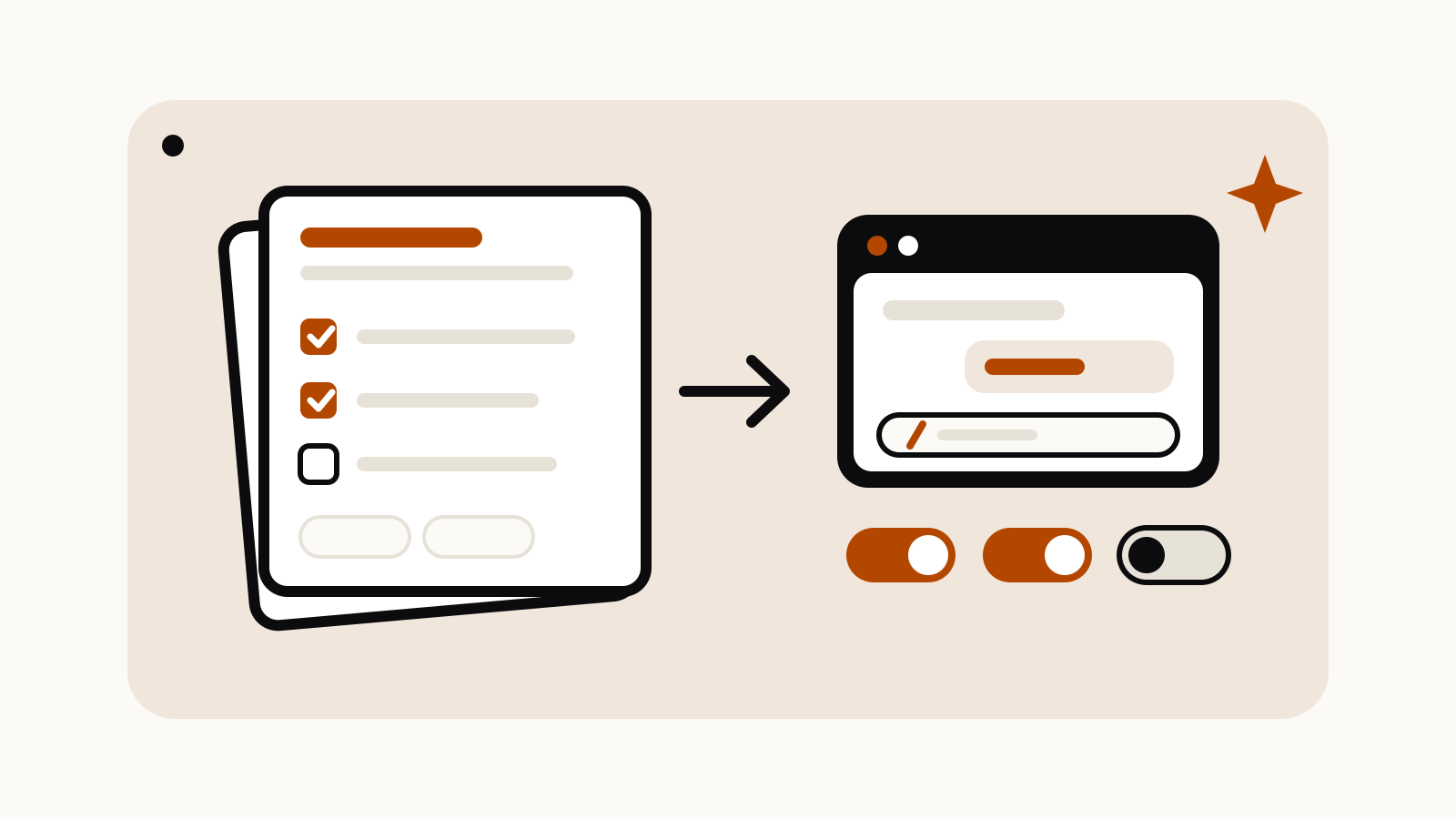
Gemini skills are saved instructions you write once and reuse: open Customize → Skills on gemini.google.com, create the skill from a template, with Gemini’s help or from a SKILL.md file, then call it in any chat by typing / and its name. Gemini can also apply an active skill on its own when your prompt matches its description. The rest of this guide covers the setup steps, the upload rules and how to write a skill Gemini actually picks up.
On this page
What you need before you start
Google’s Create & manage skills help page lists three requirements: you must be 18 or over, signed in to the Gemini app, and have Keep Activity turned on. For now skills work in the Gemini web app, the Gemini mobile app and the Gemini app on Mac. You don’t need a paid plan: the same page says skills are available without a Google AI subscription and can be used in ordinary chats.
Google started rolling skills out in the Gemini app on October 13, 2026 and expects to finish by mid-November, according to the Workspace Updates post. If the Skills tab is missing, your account may simply not have it yet.
Four ways to create a skill
All of them start from the same place: on gemini.google.com (or the Mac app) click Customize in the sidebar, then Skills at the top. If Customize isn’t visible, it sits under More.
| Method | Where | Best for |
|---|---|---|
| Create with Gemini | Skills page → Create → Create with Gemini | Describing a routine in plain words and letting Gemini draft it |
| Prefilled template | Skills page → Recommended | Starting from one of Google’s examples and editing it |
| Blank template | Skills page → Create → Create manually | Writing the name, description and instructions yourself |
| Upload | Skills page → Upload | A SKILL.md file, or a folder or .zip with SKILL.md in its main folder |
You can also ask from a normal chat, for example Create a skill based on these instructions: …. Gemini saves the result to your Skills page, and you can keep refining it in the same chat. Activating, deactivating and deleting still happen on the Skills page only.
Upload rules for SKILL.md files
Uploads follow a few rules from Google’s help page:
- The skill’s name inside
SKILL.mdmust be lowercase words joined by hyphens, such asplan-meal-from-recipe. - Reference files must be plain text you could open in a text editor (.txt, .md, .csv, .json, .yaml and similar), plus PDFs and images. Word and Excel files are not accepted.
- All files together can’t exceed 100 MB.
- Scripts can’t reach the internet or act on outside websites.
- Reference files can only be added by uploading them with the skill. To change a file later, upload the whole skill again with Replace skill.
Hidden files such as .DS_Store can make an upload fail, so clear them out of the folder first.
How to use a skill in a chat
Type / in the prompt box (or @ on accounts that already have Google’s newer shortcut) and pick the skill. You can add several skills to one request, and a skill’s instructions can reference other skills. Gemini also reads the name and description of every active skill and applies one automatically when it fits your request. To stop that, open the skill on the Skills page and choose More → Deactivate; if you later call a deactivated skill by name, Gemini asks whether to turn it back on.
From the same menu you can edit a skill directly, choose Edit with Gemini, download it as a .zip or delete it. Deleting can’t be undone.
How to write a skill Gemini picks up
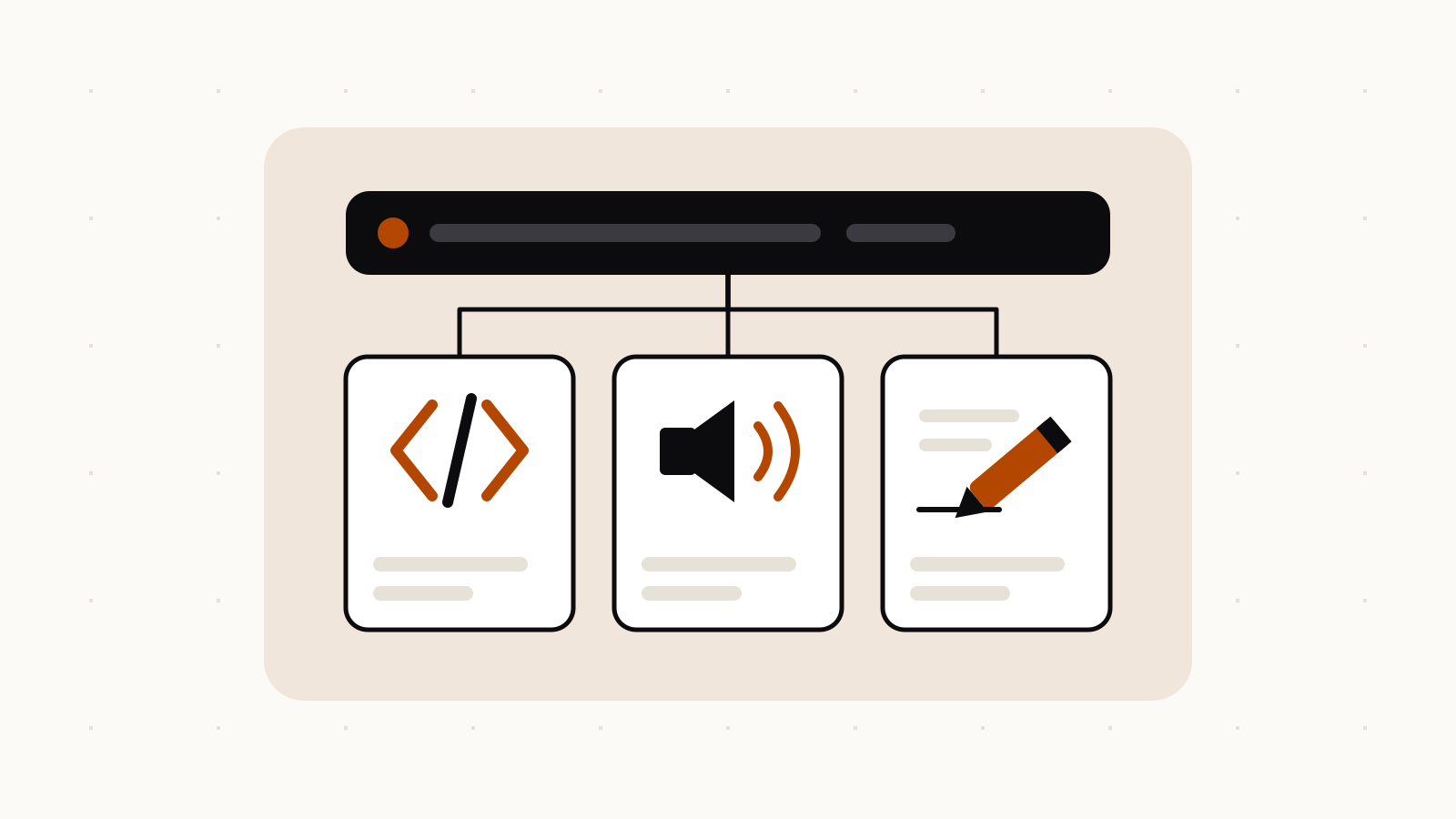
Google’s Write effective skills article explains that Gemini first looks only at a skill’s name and description to decide whether it’s relevant, then reads the full instructions, and opens attached files only when a step needs them. That makes the name and description the part to get right.
Name. Start with a verb and say what the skill does: draft-weekly-status-email, not email-helper.
Description. One or two sentences in the third person, up to 1,024 characters, that end with concrete triggers. A pattern that follows Google’s advice:
Turns rough meeting notes into a status email with Summary, Decisions and Next steps sections. Use when I paste meeting notes, ask for a weekly update, or need a follow-up email after a call.
Instructions. Keep them short, like a cheat sheet rather than a manual. Google suggests:
- Teach a type of task, not one result (“build a meal plan from what I like”, not “spaghetti on Tuesday”).
- Give loose direction for creative work and step-by-step rules where format and accuracy matter.
- Include an output template, for example fixed section names or a
Headline / Body / Hashtagslayout. - Add a short “common mistakes” list, such as removing personal details unless asked.
- For longer jobs, add a checklist Gemini can tick off.
- Say what to do when information is missing: ask, rather than guess.
The same structure works well for any reusable prompt; our system prompt guide covers the overlap, and few-shot examples are a good way to show the format you want inside the instructions.
When a skill isn’t worth it
Google’s own rule of thumb: skip the skill for one-off jobs, for tasks Gemini already does the way you like, and for processes that change too often to keep up to date. A skill pays off when you keep pasting the same long prompt, keep fixing the same formatting, or keep repeating the same steps across Gmail, Docs and Calendar.
What happens to Gems
Skills are replacing Gems. Google’s September 30 announcement says Gem support for personal accounts starts going away in November 2026, and the Workspace admin timeline moves Gems into Settings on November 17, 2026, where they can still be created and used for now. Business and enterprise accounts lose Gems no sooner than March 1, 2027 and education accounts no sooner than June 1, 2027. Remaining Gems are converted automatically into inactive draft skills that keep their names, instructions and knowledge files; you review and activate each one. Our news story on the switch has the background.