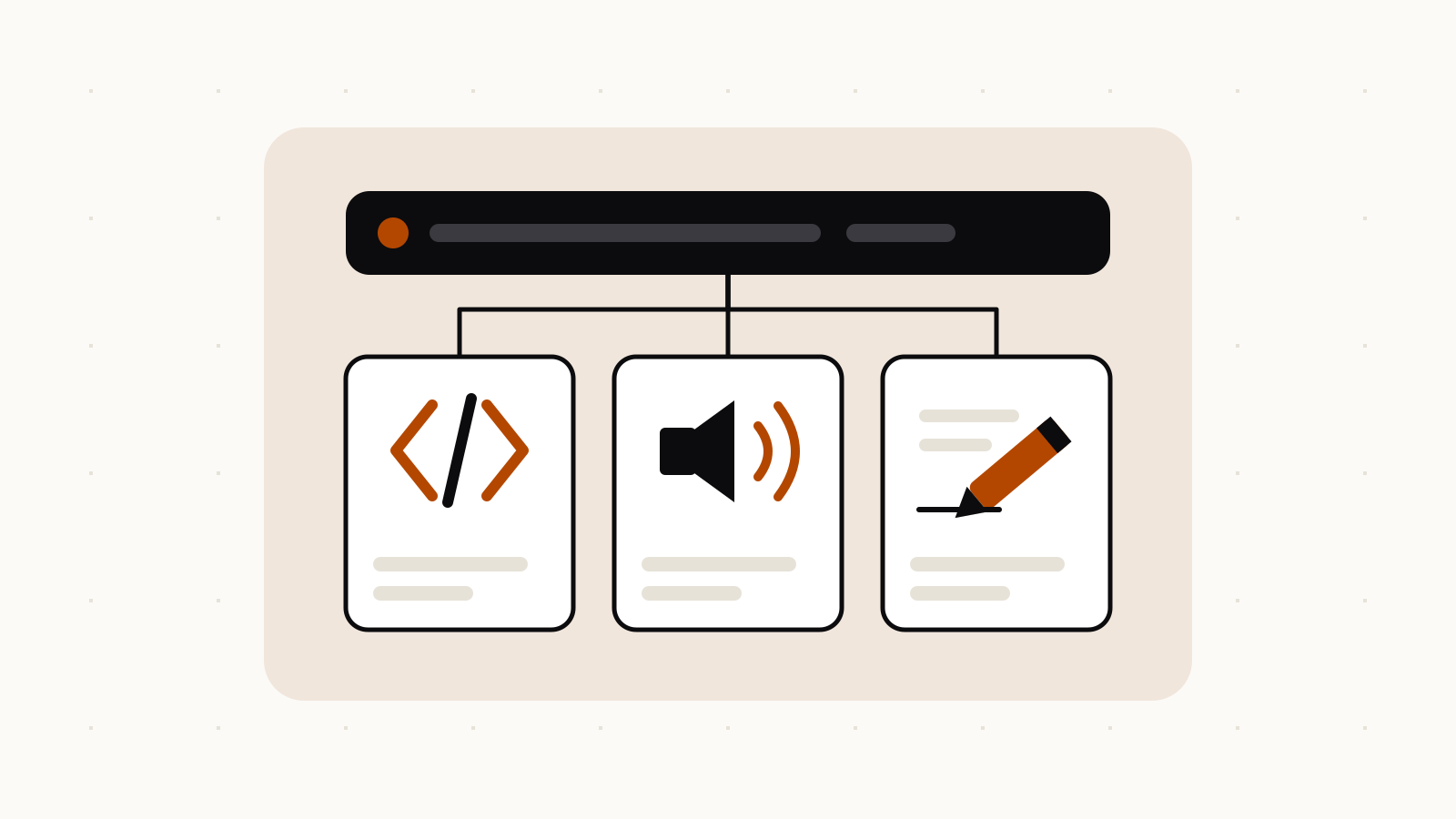
These system prompt examples are grouped by use case and each one is quoted from OpenAI, Anthropic or Google documentation: a coding assistant with house rules, a review classifier, answers grounded only in your documents, a general template, agent behavior, and voice and formatting rules. Paste one into the system or developer field, or into an app’s custom instructions, then adapt it to your task.
A system prompt holds the rules that stay the same for every message: who the model is, what it must and must not do, and how the answer should look. If you are new to the idea, start with what a system prompt is and where to set it. This page is the companion: examples you can copy, grouped by the job they do, with a note on how to adapt each one.
On this page
System prompt vs user prompt vs assistant message
OpenAI’s prompt engineering guide defines three roles:
| Role | Who writes it | What it holds |
|---|---|---|
| System / developer | The app builder (or you, in custom instructions) | Rules, persona, format; “prioritized ahead of user messages” |
| User | The person chatting | The request and its inputs; “prioritized behind developer messages” |
| Assistant | The model | Its replies; you can also write sample assistant replies as examples |
OpenAI calls the system prompt a developer message or the instructions parameter, Anthropic uses the system parameter, and Google calls it a system instruction. Google’s prompting strategies page gives a placement rule that fits all three: put “essential behavioral constraints, role definitions (persona), and output format requirements in the System Instruction or at the very beginning of the user prompt”, and put the specific question “at the very end of the prompt”.
Coding assistant with house rules
From OpenAI’s prompt engineering guide, a developer message split into Identity, Instructions and Examples:
# Identity

You are coding assistant that helps enforce the use of snake case
variables in JavaScript code, and writing code that will run in
Internet Explorer version 6.

# Instructions

* When defining variables, use snake case names (e.g. my_variable)
  instead of camel case names (e.g. myVariable).
* To support old browsers, declare variables using the older
  "var" keyword.
* Do not give responses with Markdown formatting, just return
  the code as requested.

# Examples

<user_query>
How do I declare a string variable for a first name?
</user_query>

<assistant_response>
var first_name = "Anna";
</assistant_response>
Adapt it: swap the Identity line for your stack and replace the two instructions with your own conventions. Keep one example per rule that the model gets wrong most often. If you only need a role, Anthropic’s prompting best practices show that a single sentence works: You are a helpful coding assistant specializing in Python.
Labels and classification
Also from OpenAI’s guide, a few-shot system prompt that returns one word per review:
# Identity

You are a helpful assistant that labels short product reviews as
Positive, Negative, or Neutral.

# Instructions

* Only output a single word in your response with no additional formatting
  or commentary.
* Your response should only be one of the words "Positive", "Negative", or
  "Neutral" depending on the sentiment of the product review you are given.

# Examples

<product_review id="example-1">
I absolutely love this headphones — sound quality is amazing!
</product_review>

<assistant_response id="example-1">
Positive
</assistant_response>

<product_review id="example-2">
Battery life is okay, but the ear pads feel cheap.
</product_review>

<assistant_response id="example-2">
Neutral
</assistant_response>

<product_review id="example-3">
Terrible customer service, I'll never buy from them again.
</product_review>

<assistant_response id="example-3">
Negative
</assistant_response>
Adapt it: change the label set (for example Bug, Feature request, Billing) and give one example per label. The user message then holds only the new item to classify.
Answers only from your documents
Google’s prompting strategies page gives this system instruction for answers grounded in context you supply:
You are a strictly grounded assistant limited to the information provided in
the User Context. In your answers, rely **only** on the facts that are
directly mentioned in that context. You must **not** access or utilize your
own knowledge or common sense to answer. Do not assume or infer from the
provided facts; simply report them exactly as they appear. Your answer must
be factual and fully truthful to the provided text, leaving absolutely no
room for speculation or interpretation. Treat the provided context as the
absolute limit of truth; any facts or details that are not directly
mentioned in the context must be considered **completely untruthful** and
**completely unsupported**. If the exact answer is not explicitly written in
the context, you must state that the information is not available.
Adapt it: paste your policy, manual or notes into the user message under a “User Context” heading so the label in the instruction matches.
A general-purpose template
The same Google page closes with a template that combines its advice. The system instruction part:
<role>
You are Gemini 3, a specialized assistant for [Insert Domain, e.g., Data Science].
You are precise, analytical, and persistent.
</role>

<instructions>
1. **Plan**: Analyze the task and create a step-by-step plan.
2. **Execute**: Carry out the plan.
3. **Validate**: Review your output against the user's task.
4. **Format**: Present the final answer in the requested structure.
</instructions>

<constraints>
- Verbosity: [Specify Low/Medium/High]
- Tone: [Specify Formal/Casual/Technical]
</constraints>

<output_format>
Structure your response as follows:
1. **Executive Summary**: [Short overview]
2. **Detailed Response**: [The main content]
</output_format>
Adapt it: fill the brackets and drop the model name from the first line if you use the template with ChatGPT or Claude. The documents and the task go in the user prompt, inside <context> and <task> tags, as Google’s example shows.
Agents: act by default, or ask first
Anthropic’s prompting best practices give two opposite system prompt snippets for assistants that can edit files or call tools. For an assistant that should make changes:
<default_to_action>
By default, implement changes rather than only suggesting them. If the user's intent is
unclear, infer the most useful likely action and proceed, using tools to discover any
missing details instead of guessing. Try to infer the user's intent about whether a tool
call (e.g., file edit or read) is intended or not, and act accordingly.
</default_to_action>
For one that should hold back until told:
<do_not_act_before_instructions>
Do not jump into implementation or change files unless clearly instructed to make
changes. When the user's intent is ambiguous, default to providing information, doing
research, and providing recommendations rather than taking action. Only proceed with
edits, modifications, or implementations when the user explicitly requests them.
</do_not_act_before_instructions>
The same page has a longer snippet that asks the assistant to confirm before actions that are hard to reverse, such as deleting files or pushing code. It opens with:
Consider the reversibility and potential impact of your actions. You are encouraged to
take local, reversible actions like editing files or running tests, but for actions that
are hard to reverse, affect shared systems, or could be destructive, ask the user before
proceeding.
Anthropic also warns against shouting. Where older prompts said “CRITICAL: You MUST use this tool when…”, it suggests plain wording such as “Use this tool when…”, because newer models follow the system prompt more closely.
Voice, tone and formatting
Three short instructions from Anthropic’s guide, each for a common annoyance:
Text that will be read aloud. Anthropic’s point is that a reason works better than a bare rule. Instead of “NEVER use ellipses”, write:
Your response will be read aloud by a text-to-speech engine, so never use ellipses since the text-to-speech engine will not know how to pronounce them.
Prose instead of bullet lists. Say what you want rather than what to avoid:
Your response should be composed of smoothly flowing prose paragraphs.
No warm-up sentences.
Respond directly without preamble. Do not start with phrases like 'Here is...', 'Based on...', etc.
Long or short answers. Google’s example sets a default and leaves the user an exit:
All questions should be answered comprehensively with details, unless the user requests a concise response specifically.
In the ChatGPT, Claude and Gemini apps
You can paste any of these into the apps’ standing-instruction fields, which work like a system prompt for your account or project:
- ChatGPT: Settings → Personalization → Custom Instructions for all chats, or Project settings for one project (custom instructions, projects). OpenAI’s project example:
Act like my marketing mentor. Be concise. Use bullet points. Ask clarifying questions. - Claude: Settings → Instructions for Claude, or Set project instructions on a project page (Claude help).
- Gemini: skills, which Google announced on September 30, 2026 as the replacement for Gems (Google). Details are in our Gemini skills update.
The API examples above that rely on tools (the agent snippets) only make sense where the model can act; in a chat app, use the formatting and tone examples instead.
How long a system prompt can be, and what it costs
A system prompt is input like any other text. Anthropic’s token counting docs count a request with the system prompt You are a scientist and the message Hello, Claude as 14 input tokens, so every word of your system prompt is counted, and resent, on every request. OpenAI notes that the context window is “defined in terms of tokens” and advises keeping content you reuse “at the beginning of your prompt” to get prompt caching savings.
There is no separate cap for the system prompt in these docs: it shares the model’s context window with the conversation. Keep stable rules in the system prompt and anything that changes per request in the user message. To check the size of a draft, paste it into our token counter.